Destiny 2 Boost
Destiny 2 Renegades Preparation Guide + Checklist
Your Clean Guide For Destiny 2 Renegades Best Graphical Settings Is Ready. Trim Heavy Sliders, Push Light Options, And Get Smooth Fps On Any PC.
 dummy_writer
Tuning visuals in Destiny 2 Renegades feels like tightening screws on a high-speed bike – one small turn and everything runs smoother. You don’t need a monster rig to win fights or hold clear vision. The trick sits in knowing what hits fps hard and what can stay pretty without hurting your aim. Destiny 2 Renegades best graphical settings don’t ask for magic – they ask for smart swaps, tight resolution control, and zero fluff. You’ll see how fast fps jumps when you drop shadows or shrink render scale. You’ll also learn where you can keep detail high without losing a single frame.
Let’s break it down and get your rig tuned like a laser.
If you’re reading this, you might be interested in a discount just for you—my blog reader! Use code CRINGEBLOG to get an amazing discount on Destiny 2 boost in our shop.
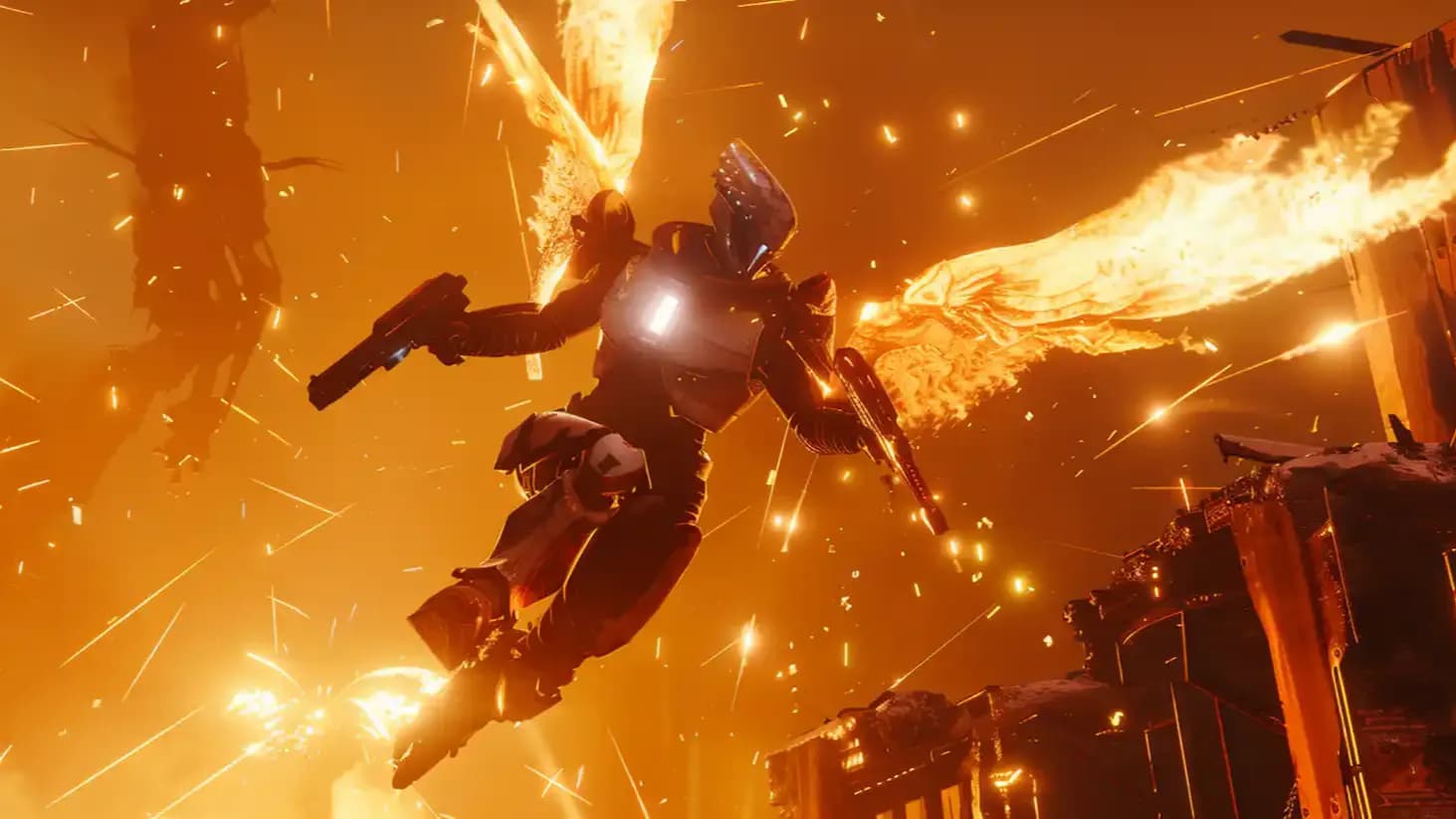
Destiny 2 Renegades best graphical settings sit around a simple idea – you push strong visual sliders that barely touch fps, and you drop heavy sliders that eat fps for small beauty gains. In this part of the guide you go through all core options one by one, so a reader understands what each button inside Destiny 2 Renegades best graphical settings actually changes on screen and how hard it hits the frame counter. The goal is simple and clear – you give players a short description of the picture effect, plus a clear hint if this option has small, medium, or strong impact on fps, so they can tune Destiny 2 Renegades best graphical settings for any kind of PC without guesswork or blind trial.
| Setting | What it changes on screen | Impact on fps | Tip for Destiny 2 Renegades best graphical settings |
|---|---|---|---|
| Window Mode | Fullscreen, borderless, or windowed view and how the game grabs the display surface | Small impact | Use fullscreen for the best fps and latency, keep borderless only if instant alt-tab is important. |
| Resolution | Count of pixels drawn on screen and overall image sharpness | Large impact | Keep native resolution when fps stays stable, drop to 1600×900 or 1280×720 if fps is low. |
| V-Sync | Synchronization between fps and monitor refresh to hide tearing lines | Medium impact on input feel | Turn v-sync off in game for best input; use frame cap or sync tech outside. |
| Framerate Cap | Upper limit for fps and how hard GPU runs in open scenes | Small to medium impact | Cap fps close to monitor refresh to reduce heat and keep frame time stable. |
| Field of View (FOV) | Width of camera view and how much world you see at once | Medium impact | Use wide FOV for comfort and PvP awareness, drop a few degrees only if needed. |
| Global Quality Preset | Grouped bundle of low, medium, high, highest for all advanced settings | Mixed impact | Use High on strong rigs, Low on weak rigs, then tweak heavy sliders by hand. |
| Anti-Aliasing (FXAA / SMAA / Off) | Smoothing of jagged edges on geometry and weapons | Small impact | Pick SMAA on strong GPUs, FXAA or Off on weak GPUs. |
| Render Resolution Scale | Internal render size versus display size, controls supersample or upscale quality | Very large impact | Keep 100% for normal play, raise on strong GPUs, drop only when fps is very low. |
| Texture Quality | Resolution of surface details on armor, walls, ground, weapons | Small impact when VRAM is large | Use High with 4GB VRAM or above, Medium with 3GB, Low with 2GB. |
| Texture Anisotropy | Sharpness of textures seen at an angle | Very small impact | Set 8× or 16× even on weak GPUs. |
| Shadow Quality | Resolution and distance of dynamic shadows | Very large impact | Drop shadows first when fps drops; High on strong rigs, Low or Lowest on weak rigs. |
| Environmental Detail Distance | Level of detail and pop-in range for buildings, rocks, terrain | Small impact | Keep this high on most systems for clean world view. |
| Character Detail Distance | Detail level for far characters and NPC models | Almost zero impact | Leave high for clear player model view. |
| Foliage Detail Distance | Density and draw distance for grass, bushes, trees | Medium to large impact | Lower to Medium or Low when you need fps. |
| Foliage Shadows Distance | Distance where foliage casts shadows | Very small impact | Keep Medium or High; drop only on ultra weak PCs. |
| Ambient Occlusion (HDAO / 3D / Off) | Soft contact shadows in corners and around objects | Medium impact | Use HDAO for good balance; 3D on strong rigs; Off on weak rigs. |
| Depth of Field | Cinematic blur in cutscenes and aim views | Small to medium impact | Turn Off for clear view and extra fps; keep High on strong rigs. |
| Light Shafts | Sun rays and beams through trees or windows | Small impact | Keep High on strong GPUs; Low or Off for fps chase. |
| Motion Blur | Blur streak during quick movement | Almost zero impact | Off for crisp aiming; On only for style. |
| Wind Impulse | Sway of grass, trees, cloth | Almost zero impact | Leave On, change only for stutter fixes. |
| Chromatic Aberration | Color fringe effect near screen edges | Very small impact | Turn Off for sharp HUD; On only for soft cinematic feel. |
| Film Grain | Fine grain layer that mimics film | Very small impact | Turn Off for clean picture; On only for gritty style. |
Inside Destiny 2 Renegades best graphical settings four sliders have the strongest effect on performance – shadow quality, ambient occlusion, foliage detail distance, and render resolution – and these are the first candidates to drop when fps sinks. Most other sliders like character detail, environment detail, foliage shadows, light shafts, motion blur, wind impulse, chromatic aberration, and film grain touch fps only slightly, so they can stay high in Destiny 2 Renegades best graphical settings to keep the picture rich while you work mainly with the heavy four plus core base options such as window mode, resolution, v-sync, frame cap, field of view, anti-aliasing, and texture quality for Destiny 2 leveling.
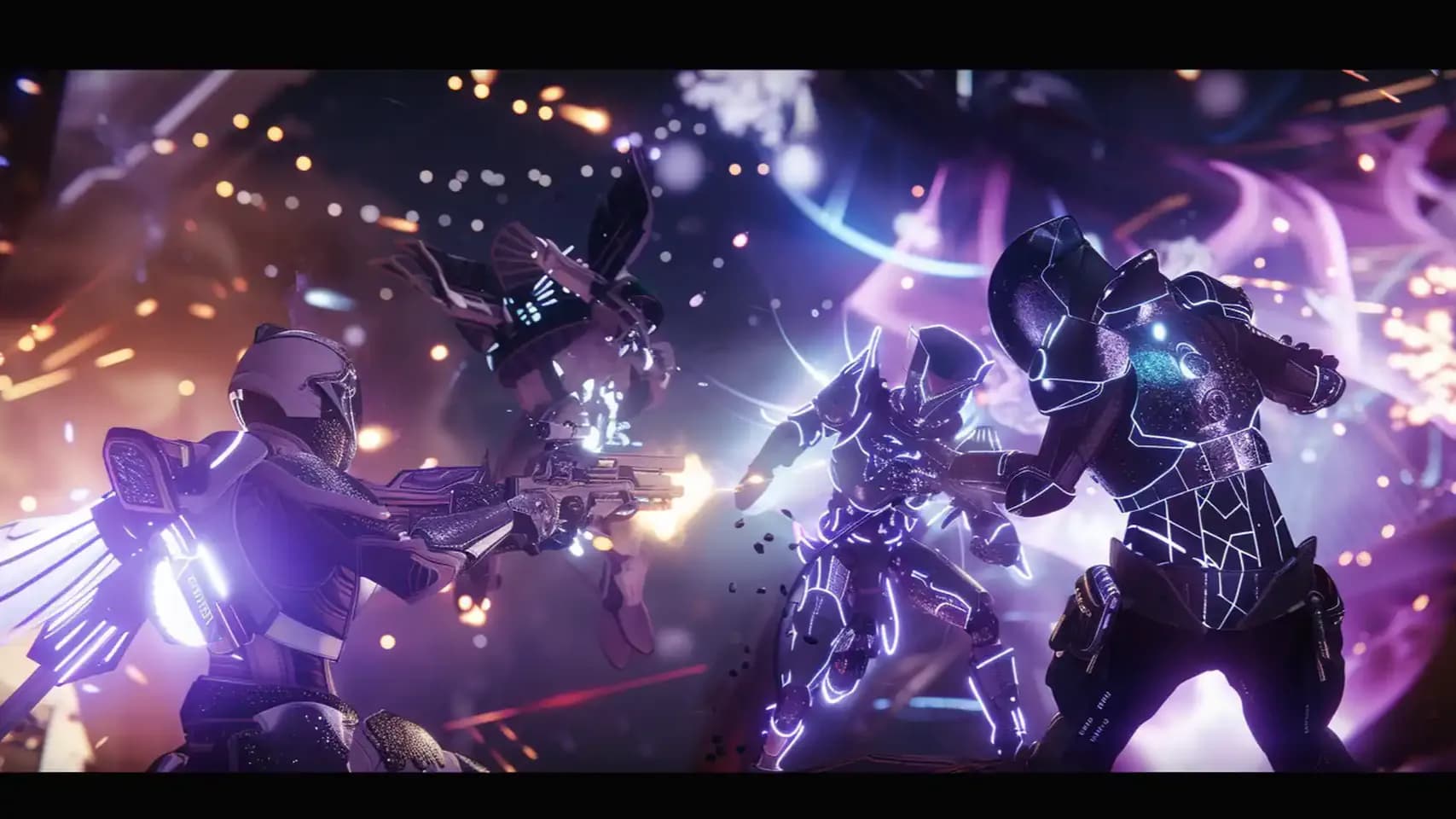
Destiny 2 Renegades Optimization for Low PC sits on one simple rule – you cut the four heavy legs first, so shadows, ambient occlusion, foliage detail, and render resolution go down, while light options stay high for a cleaner picture that still runs on old hardware inside destiny 2 renegades best graphical settings. A weak PC likes Low preset as a base, then you raise only cheap sliders like environment and character detail a bit, keep textures at the highest level that fits inside VRAM, and use 720p or a lower render scale only when fps still drops after you trim shadows and foliage.
| Parameter | Recommended value |
|---|---|
| Window Mode | Fullscreen |
| Resolution | 1280×720 |
| Render Resolution | 75% |
| Global Quality Preset | Low |
| V-Sync | Off |
| Framerate Cap | 60 |
| Field of View | 90 |
| Texture Quality | Low |
| Texture Anisotropy | 8× |
| Anti-Aliasing | FXAA |
| Shadow Quality | Lowest |
| Ambient Occlusion | Off |
| Environmental Detail Distance | High |
| Character Detail Distance | High |
| Foliage Detail Distance | Low |
| Foliage Shadows Distance | Low |
| Depth of Field | Off |
| Light Shafts | Low |
| Motion Blur | Off |
| Wind Impulse | Off |
| Chromatic Aberration | Off |
| Film Grain | Off |
| NVIDIA Power Mode | Maximum Performance |
| Texture Filtering Quality (Driver) | High Performance |
| LOD Bias (optional potato) | +0.5 |
| Windows Power Plan | High Performance |
Destiny 2 Renegades Optimization for Low PC also needs a small driver touch – you set Power mode to Maximum Performance in NVIDIA panel, cap fps close to monitor refresh for cooler work, and keep v-sync off inside the game while adaptive sync or Fast Sync in the driver handles tearing, so the frame time stays stable without extra input lag in destiny 2 renegades best graphical settings. For final potato steps you can use Low preset, 1280×720 or a lower internal scale, shadows on Lowest, ambient occlusion off, foliage detail on Low, depth of field off, motion blur off for clarity, chromatic aberration off, film grain off, and you always check that background apps, Windows power plan, and old drivers do not steal performance that your weak GPU and CPU try to push into the Destiny 2 Portal.
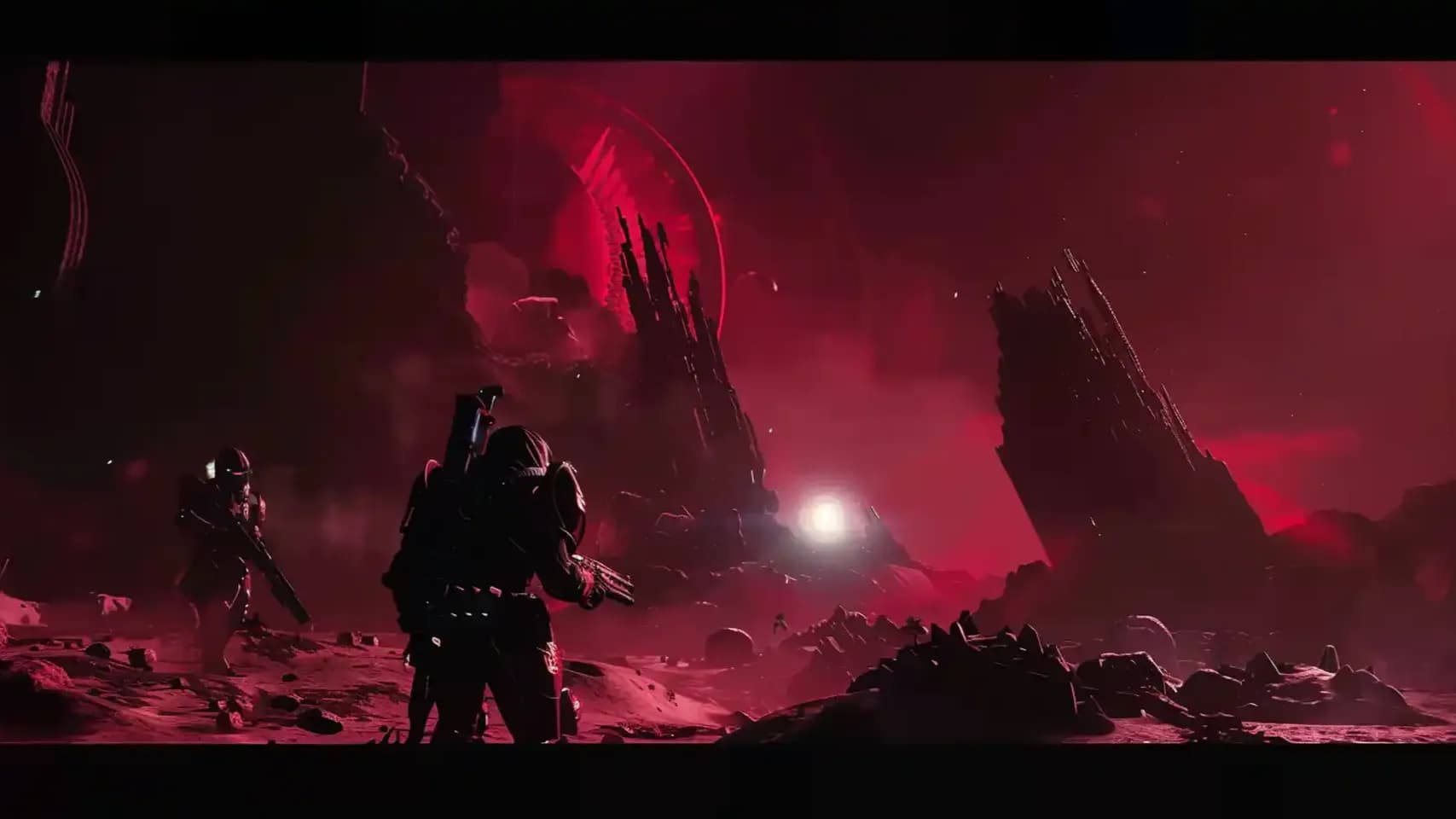
Destiny 2 Renegades potato mode gives the lowest load on GPU and CPU, so a very weak PC can push stable frames inside destiny 2 renegades best graphical settings. You drop sharp textures, long shadows, deep AO, and push hard downscale to get a flat picture with stable play speed. This helps old cards run destiny 2 renegades best graphical settings without freeze spikes, even in raids or Tower hubs.
| Parameter | Recommended value |
|---|---|
| Resolution | 1280×720 or 1024×768 |
| Render Resolution | 25% |
| Window Mode | Fullscreen |
| V-Sync | Off |
| Framerate Cap | 60 |
| FOV | 85 |
| Shadow Quality | Lowest |
| Ambient Occlusion | Off |
| Foliage Detail | Low |
| Foliage Shadows | Low |
| Environmental Detail | Low |
| Character Detail | Low |
| Depth of Field | Off |
| Light Shafts | Off |
| Motion Blur | Off |
| Wind Impulse | Off |
| Chromatic Aberration | Off |
| Film Grain | Off |
| Texture Quality | Low |
| Texture Anisotropy | 1× |
| Anti-Aliasing | Off |
| NVIDIA Power Mode | Prefer Maximum Performance |
| Threaded Optimization | On |
| Multi-Display Mode | Single Display |
| Texture Filtering Quality | High Performance |
| Aniso Sample Optimization | On |
| Trilinear Optimization | On |
| Antialiasing Transparency | AA_MODE_REPLAY_MODE_ALL |
| LOD Bias (DX) | +0.5000 |
| Driver Controlled LOD Bias | Off |
| Predefined Ansel | ANSEL_ALLOW_DISALLOWED |
| Frame Rate Limiter | 60 (driver-side cap) |
| Low Latency Mode | On or Ultra |
| Reflex | On (auto) |
| CVARS shadow_quality | 0 |
| CVARS lightshafts_quality | 0 |
| CVARS ao_quality | 0 |
| CVARS lod_distance_scaler | 0 |
| Windows Power Plan | High Performance |
| Background Apps | Closed |
| ISLC | Active for memory clean |
| External Downscale | Magpie / Lossless Scaling to 800×600 if needed |
Destiny 2 Renegades potato mode comes from three parts – in-game lowest sliders, driver push with NVIDIA Inspector, and extra downscale tricks for light hardware. You build a simple base on 720p and 25% render scale, then you cut texture detail with LOD bias, cut all sample filters, block extra effects, and lock GPU clocks with maximum performance. This gives the lightest destiny 2 renegades best graphical settings possible to Destiny 2 Renegades.
• Titan Arc Jetpack
• Guaranteed Exotic Armor
• Fast Account Recovery
Destiny 2 Renegades best graphical settings guide shows one clear path where you focus on window mode, resolution, v-sync, frame cap, FOV, anti-aliasing, textures, shadows, AO, foliage, and render scale, while you switch to low-PC rules when hardware slows down and finish with potato mode when old rigs need the lightest load. This structure gives a full chain from strong systems to weak systems, explains how every slider changes the picture, marks the impact on fps, and forms a full setup plan that removes blind tests and gives the player a stable and clear result.
Your Clean Guide For Destiny 2 Renegades Best Graphical Settings Is Ready. Trim Heavy Sliders, Push Light Options, And Get Smooth Fps On Any PC.
Your Clean Guide For Destiny 2 Renegades Best Graphical Settings Is Ready. Trim Heavy Sliders, Push Light Options, And Get Smooth Fps On Any PC.
Your Clean Guide For Destiny 2 Renegades Best Graphical Settings Is Ready. Trim Heavy Sliders, Push Light Options, And Get Smooth Fps On Any PC.
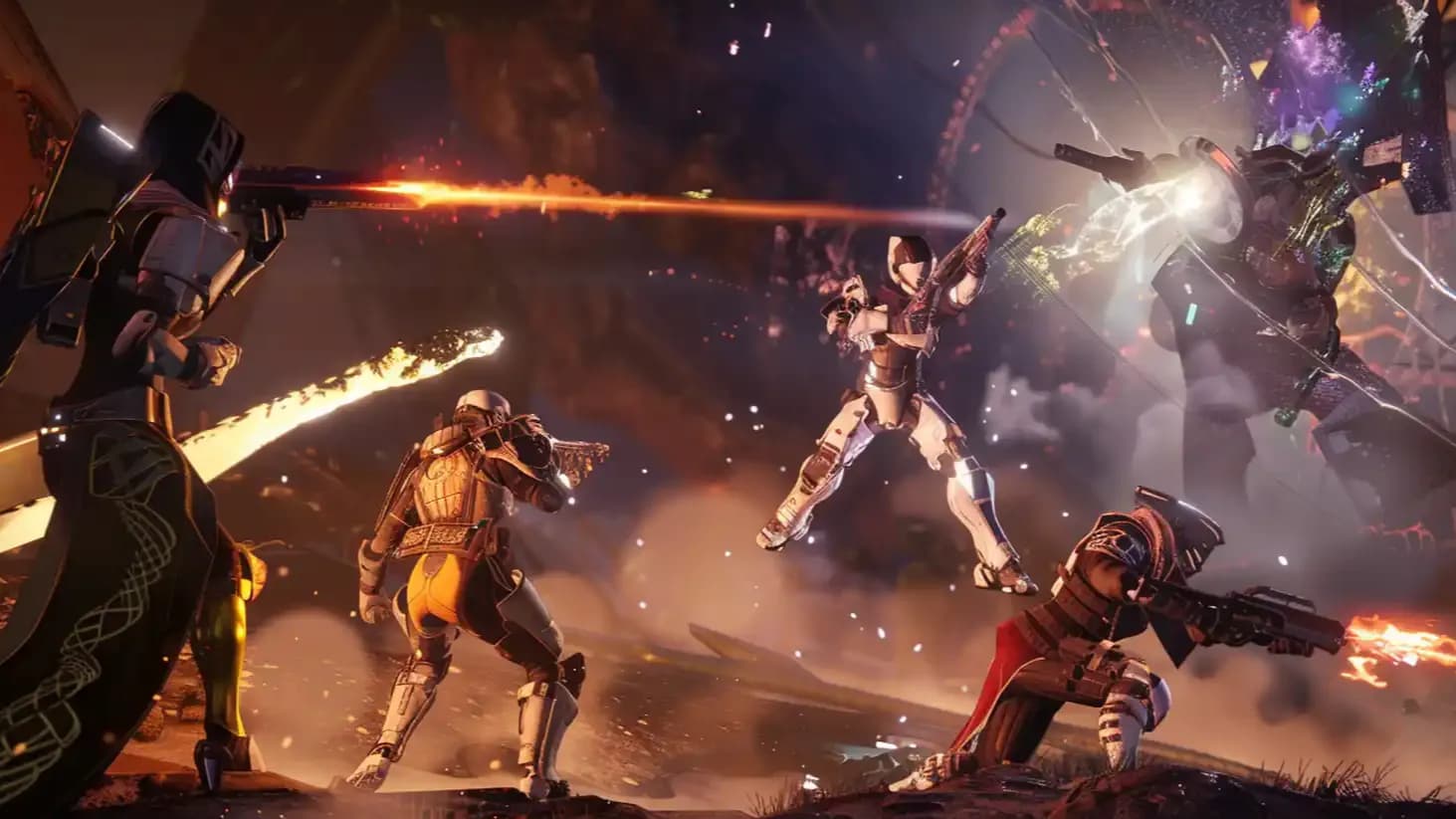
Your Clean Guide For Destiny 2 Renegades Best Graphical Settings Is Ready. Trim Heavy Sliders, Push Light Options, And Get Smooth Fps On Any PC.
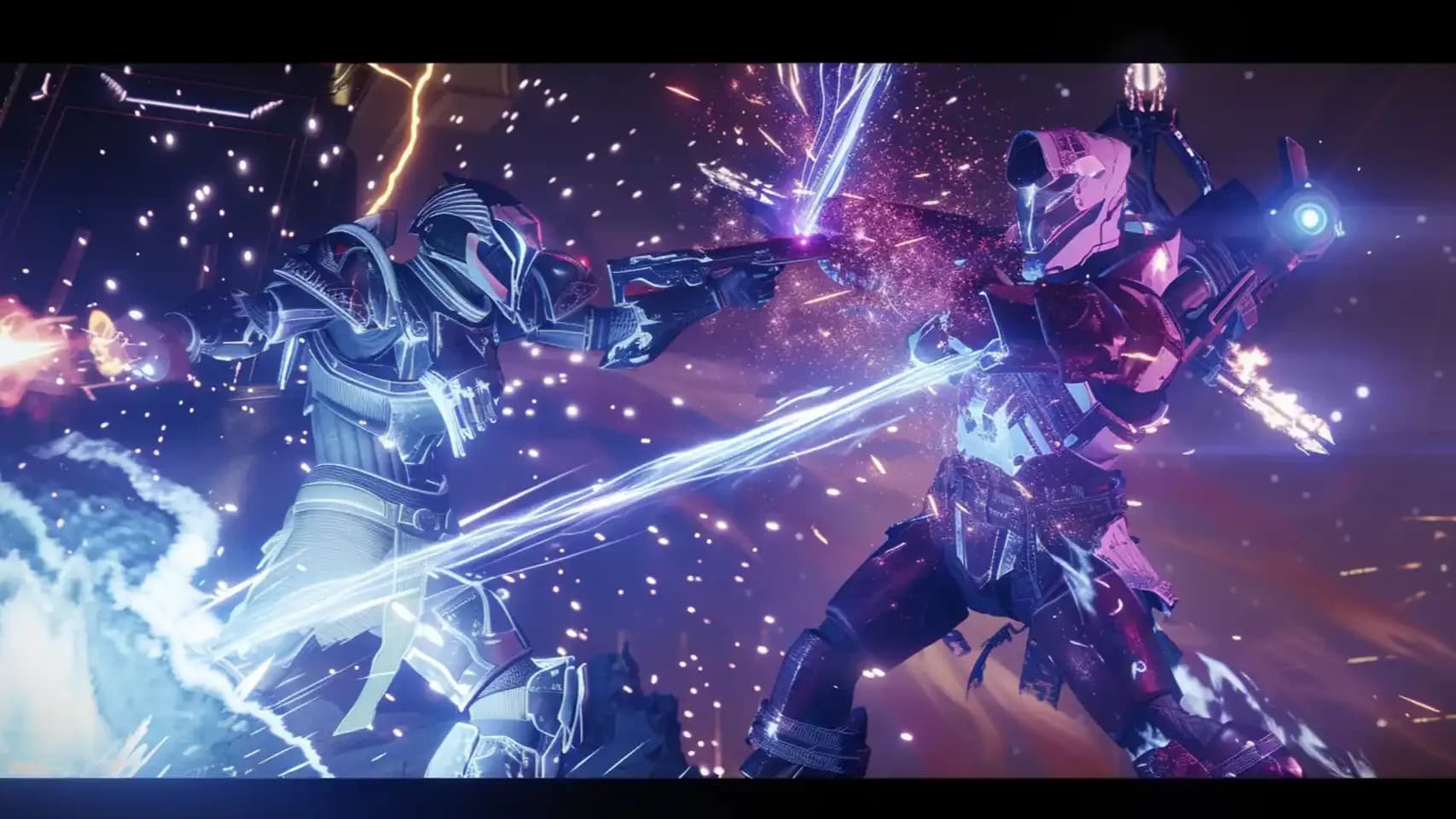
Your Clean Guide For Destiny 2 Renegades Best Graphical Settings Is Ready. Trim Heavy Sliders, Push Light Options, And Get Smooth Fps On Any PC.
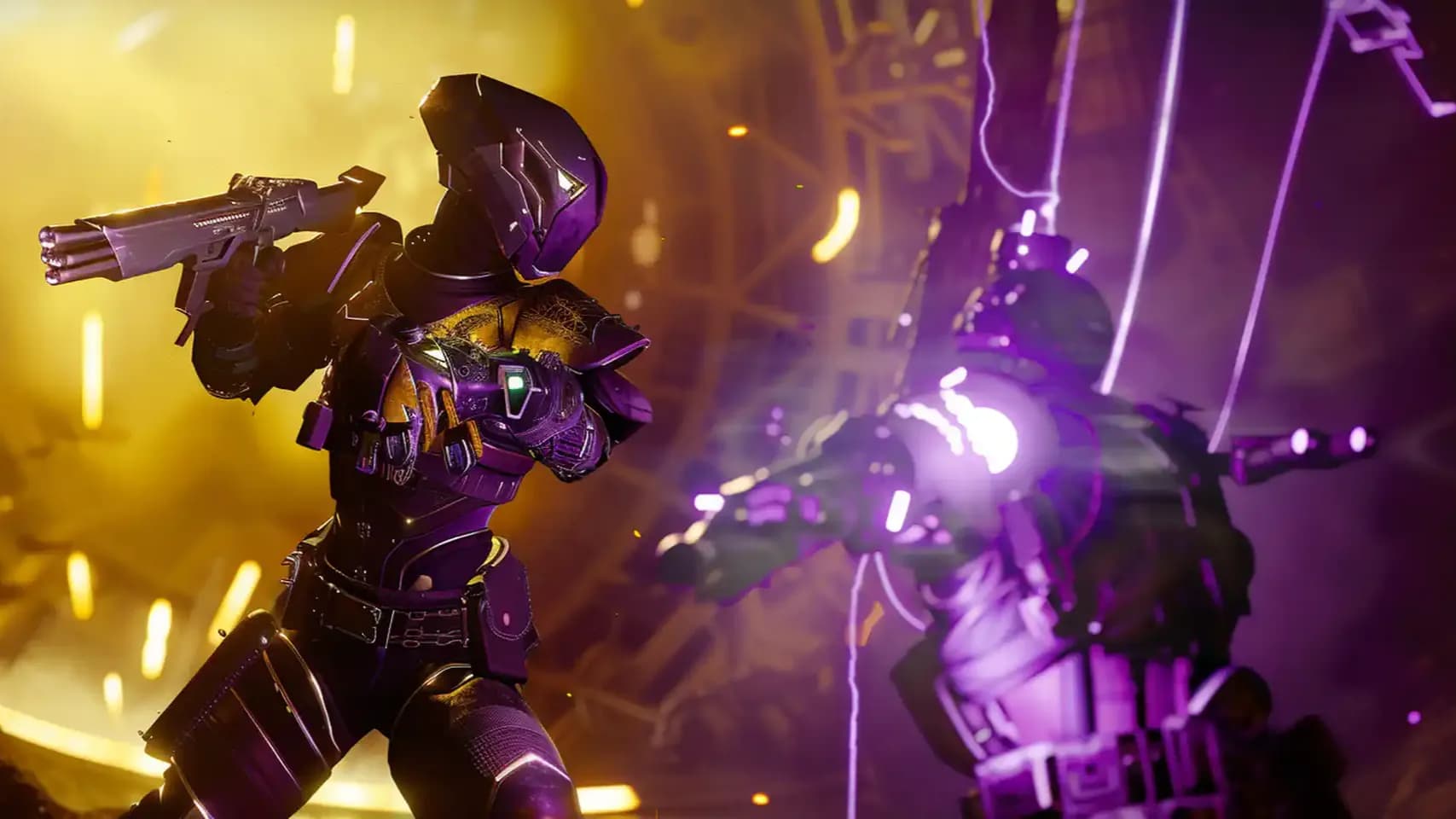
Your Clean Guide For Destiny 2 Renegades Best Graphical Settings Is Ready. Trim Heavy Sliders, Push Light Options, And Get Smooth Fps On Any PC.
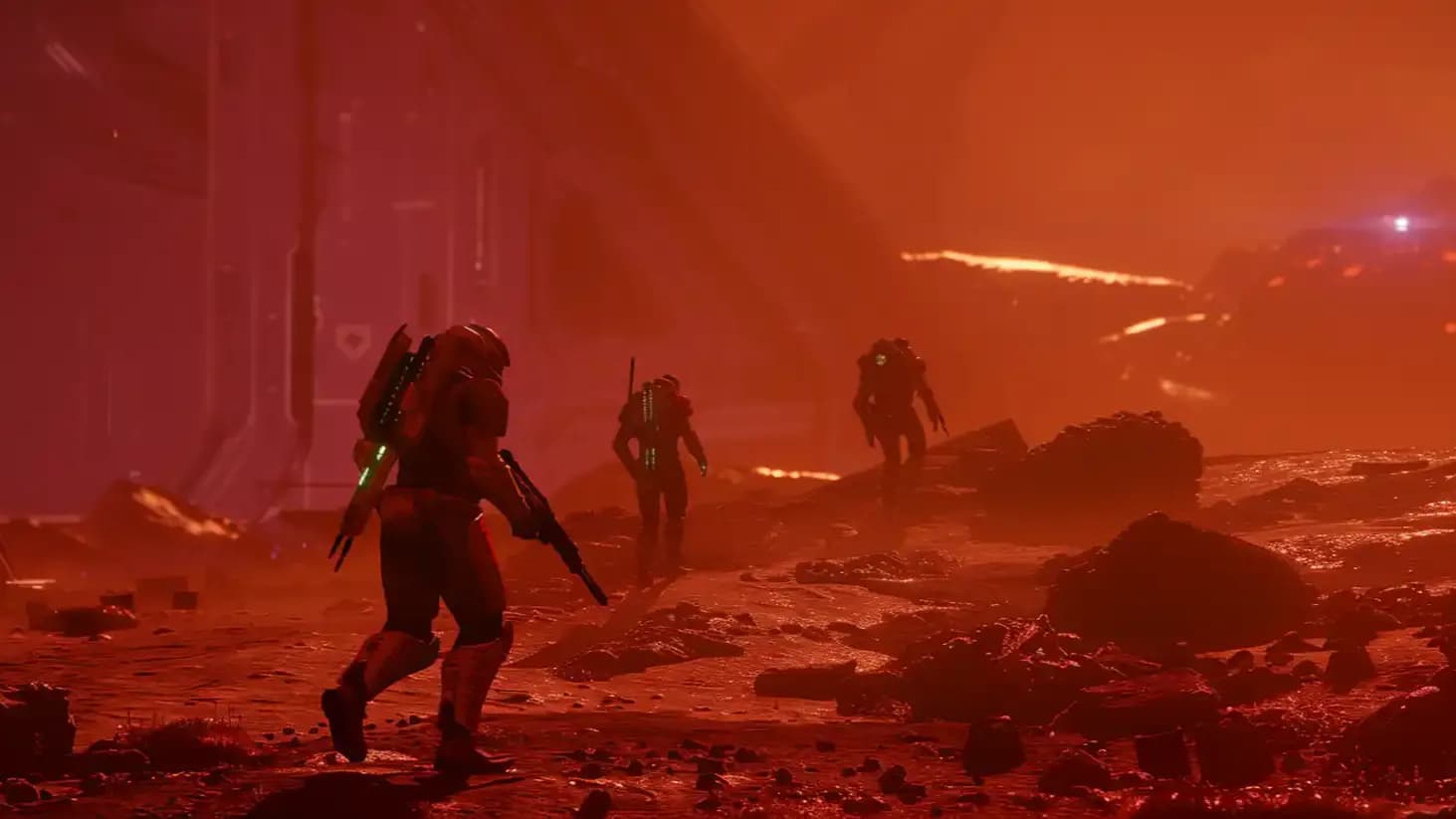
Your Clean Guide For Destiny 2 Renegades Best Graphical Settings Is Ready. Trim Heavy Sliders, Push Light Options, And Get Smooth Fps On Any PC.
Your Clean Guide For Destiny 2 Renegades Best Graphical Settings Is Ready. Trim Heavy Sliders, Push Light Options, And Get Smooth Fps On Any PC.
Your Clean Guide For Destiny 2 Renegades Best Graphical Settings Is Ready. Trim Heavy Sliders, Push Light Options, And Get Smooth Fps On Any PC.
Your Clean Guide For Destiny 2 Renegades Best Graphical Settings Is Ready. Trim Heavy Sliders, Push Light Options, And Get Smooth Fps On Any PC.
Your Clean Guide For Destiny 2 Renegades Best Graphical Settings Is Ready. Trim Heavy Sliders, Push Light Options, And Get Smooth Fps On Any PC.
Your Clean Guide For Destiny 2 Renegades Best Graphical Settings Is Ready. Trim Heavy Sliders, Push Light Options, And Get Smooth Fps On Any PC.

It controls how the game holds the screen. Fullscreen gives strong fps and low delay. Borderless helps fast alt-tab. Pick fullscreen for clean play inside Destiny 2 Renegades best graphical settings.
It sets pixel count and sharpness. High resolution pulls fps down. Low resolution lifts fps fast. Use native size on strong rigs and drop the size only when fps stays low.
It locks frames to monitor speed and adds soft delay. Turn it off in game for sharp input. Use a frame cap or sync tech outside to keep tearing under control.
It stops the GPU from pushing wild peaks. It cools the card and keeps frame time smooth. Set a cap close to monitor refresh to hold steady play.
A wide FOV shows more space and hits fps slightly. Use a wide angle for PvP vision and reduce a few degrees only if you need a small fps lift.
It sets a full pack of visual sliders at once. Pick High for strong rigs or Low for weak rigs. Then tune shadow, AO, foliage, and scale by hand.
It smooths jagged edges. SMAA looks clean with small load. FXAA gives a lighter load with softer lines. Turn AA off only when the rig is very weak.
It changes the internal size of the picture and can drain fps fast. Keep one hundred percent for normal play. Drop the scale only if fps sinks hard.
They change detail on armor and ground. High texture levels stay light when VRAM is large. Medium or Low helps weak cards avoid stutter during fights.
It sharpens angled surfaces with tiny load. Set it high on almost all rigs. It keeps floors and paths clear without lowering fps.
Shadows hit fps harder than most parts. Lowering them gives large gains fast. Keep High on strong rigs and use Low or Lowest on light hardware.
It controls building and terrain pop-in with soft load. Keep it high for clean views. It helps long routes and gives a clear world without hurting fps.
It stays light on all rigs. High detail helps read enemy shapes far away and gives a clear model view without touching frame speed.
Grass and trees strain the GPU with wide draw zones. Lowering this slider boosts fps on weak rigs. Medium or Low works fine for smooth play.
It adds tiny load and gives soft ground shadows. Medium or High works on most rigs. Drop this only when the PC is very old.
It adds soft dark lines in corners and lifts depth. HDAO gives strong balance. Use 3D on strong rigs and Off on weak cards to lift fps.
It adds blur in cutscenes. It costs a bit of fps. Turn it off for sharp PvP and keep it on only when you want a soft story view.
They draw sun beams and add style with light load. High looks great on strong rigs. Low or Off helps small hardware save a few frames.
It barely touches fps. Off gives sharp aim and clean PvP view. On works only when you want smooth camera action.
It moves grass and cloth with tiny cost. Keep it on for a live world. Turn it off only if you push for extreme potato setup.
It adds a soft color fringe on screen edges. It costs nothing, but it blurs the HUD slightly. Turn it off for clean text and sharp aim.
It adds fine grain for a gritty style. It barely hits fps. Turn it off for clear image quality or keep it on only when you want a cinematic layer.
Shadow quality, AO, foliage detail, and render scale bring the strongest fps lift. Dropping these four sliders helps weak rigs run smooth play fast.
Use Low preset as a base. Lower shadows, AO, foliage, and scale. Keep textures inside VRAM limits. Use 720p and a light AA mode when fps sinks.
Lowest visual sliders, hard downscale, strong driver tweaks, and tight caps. You push clean speed with flat textures, tiny shadows, and low AO so old rigs run stable without spikes.

GTA 6, new seasons, major updates — get ready to dominate from day one.