Call of Duty Boost
Call Of Duty: Black Ops 7 Release Date & Overview
Fast heads up for you. Here is a simple bo7 graphics guide. Clear steps for fps, smooth view, and potato mode.

 dummy_writer
Oh… You know what? Tuning graphics in Black Ops 7 feels fun because small tweaks give fast wins. This guide helps you push stable fps on strong rigs or weak rigs. Lag or stutter kills aim, so this bo7 best settings guide gives clean rules for smooth play.
If you’re reading this, you might be interested in a discount just for you—my blog reader! Use code CRINGEBLOG to get an amazing discount on any offer in our shop.
Bo7 graphical settings give one simple rule – low load gives higher fps. In this bo7 graphics settings pc part you see how each option affects frame time, input delay, and screen clarity. Heavy effects lower fps fast, shadows cut frame rate hard, and view settings change how stable your aim feels in fights. Use this as a base to build your own black ops 7 fps boost setup. One look on the table and you understand what to lower first.
| Setting | How it affects fps | Recommended |
|---|---|---|
| Full Screen Exclusive | Gives clean frame line – game draws frames without extra windows tasks | Full Screen Exclusive |
| Refresh Rate Match | Keeps frame flow stable – game sends frames with the same rhythm as monitor | Same as monitor |
| Nvidia Reflex | Uses fast sync steps – GPU runs extra timing work – small drop in speed | On+Boost |
| VSync | Creates wait line before frame – GPU holds frames – frame speed falls | Off |
| Frame Limit Custom | Cuts frame spikes – GPU keeps stable pace – helps frame line stay flat | 250 or monitor+20 |
| HDR | Uses extra color steps – GPU runs extra tone maps – frame speed falls | Off |
| FidelityFX Cast | Sharpens picture – GPU runs small upscale math – small frame delay | 100 |
| VRAM Scale Target | Large target fills memory fast – GPU checks memory blocks – frame speed falls | 80 |
| Texture Resolution | Big textures need long load time – GPU pulls data – frame speed falls | Very Low |
| Texture Filter | Uses extra math for angle checks – slow scenes get longer draw time | Low |
| Depth of Field | Adds blur layer – GPU draws second layer – frame speed falls | Off |
| Detail Quality | Draws small world objects – GPU handles more polygons – frame speed falls | Low |
| Product Resolution | World objects use high shape flags – GPU draws more shape points | Very Low |
| Bullet Impacts | Extra decals on walls – GPU draws extra layer in fights – frame speed falls | Off |
| Persistent Effects | Smoke and sparks stay longer – GPU holds extra draw steps | Off |
| Shader Quality | Complex shaders use long math chains – GPU repeats long loops | Low |
| Texture Streaming | Pullu data from disk – GPU waits small time for texture blocks | Minimal |
| Shadow Quality | Shadows need draw checks for light angle – GPU runs heavy math | Very Low |
| Terrain Quality | Terrain mesh holds dense points – GPU draws wide ground shapes | Low |
| Volumetric Quality | Fog and light volume need slice steps – GPU draws thick layers | Low |
| Deferred Physics | Extra physics checks for small stones – CPU and GPU sync more | Off |
| Weather Grid | Weather layers add big draw groups – frame speed falls in storms | Off |
| Water Quality | Water reflection needs long math – GPU repeats reflect steps | Off |
| Field of View | Wide view shows bigger scene slice – GPU draws more objects | 105 |
| ADS FOV Affected | Only changes zoom rule – zero draw work | Affected |
| Weapon FOV Wide | Only changes gun size on screen – zero draw work | Wide |
| Motion Blur | Adds blur pass – GPU draws extra layer – slower reaction feel | Off |
| Camera Movement | Cuts shake – only UI step – zero impact | 50% |
In this bo7 best settings guide part you see a clear list of all main settings. Each point shows what it does and how it pulls fps. This helps you pick safe values for weak hardware, mid hardware, or fast hardware that needs stable frame time for recoil control and fight tracking.
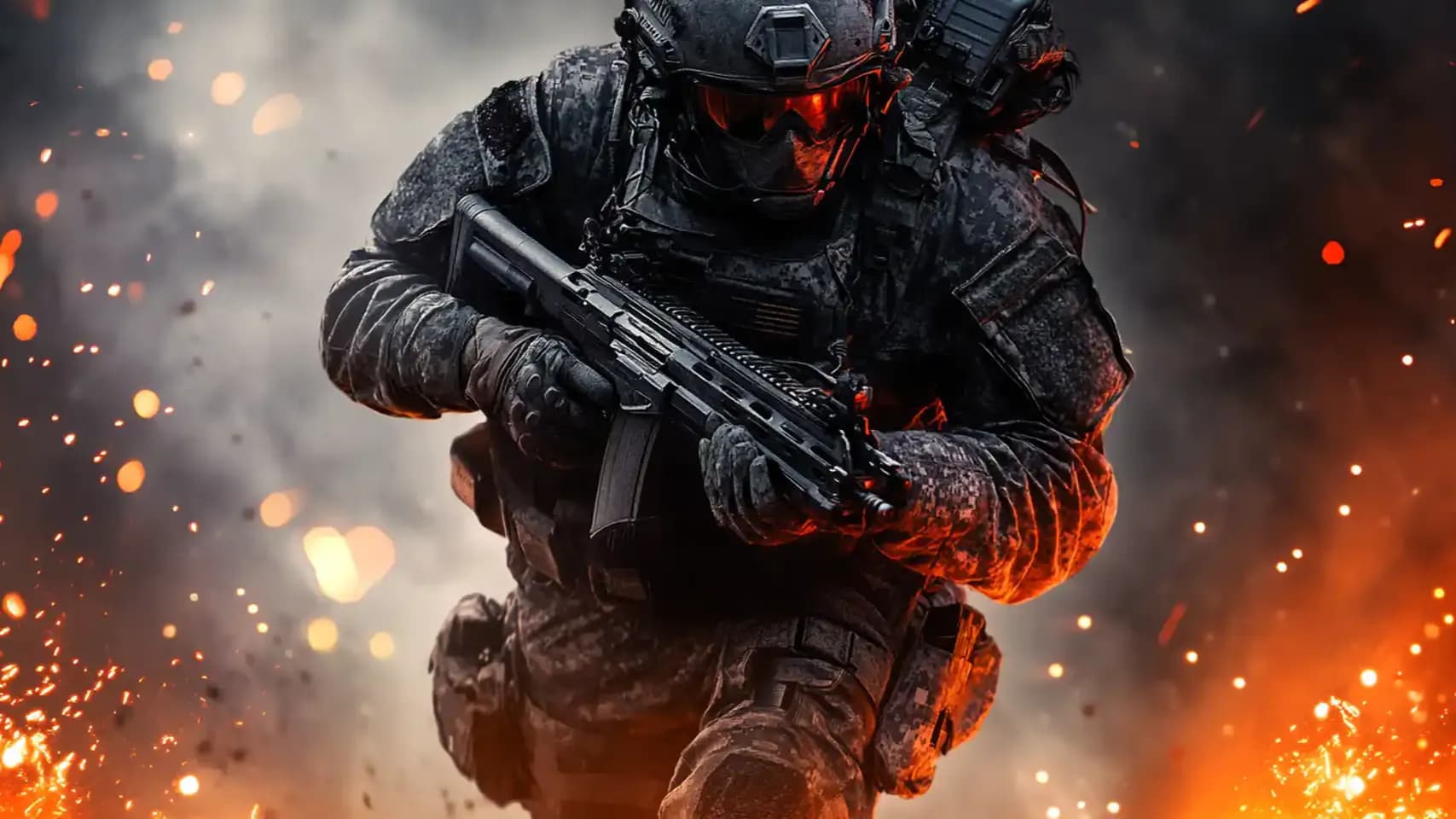
Bo7 graphical optimization for low PC works as one simple rule – cut heavy draw steps, cut long shader math, cut world layers. This gives clean frame flow on weak GPU and slow CPU. In this bo7 graphics settings pc part you see what settings hit the system hardest and what settings stay safe. These values help push black ops 7 fps boost on low hardware without losing clear view of targets.
| Setting | Recommended |
|---|---|
| Full Screen Exclusive | Full Screen Exclusive |
| Refresh Rate Match | Same as monitor |
| Nvidia Reflex | On+Boost |
| VSync | Off |
| HDR | Off |
| Frame Limit Custom | 250 or monitor+20 |
| FidelityFX Cast | 100 |
| VRAM Scale Target | 80 |
| Texture Resolution | Very Low |
| Texture Filter | Low |
| Depth of Field | Off |
| Detail Quality | Low |
| Product Resolution | Very Low |
| Bullet Impacts | Off |
| Persistent Effects | Off |
| Shader Quality | Low |
| Texture Streaming | Minimal |
| Shadow Quality | Very Low |
| Terrain Quality | Low |
| Volumetric Quality | Low |
| Deferred Physics | Off |
| Weather Grid | Off |
| Water Quality | Off |
| Field of View | 105 |
| ADS FOV Affected | Affected |
| Weapon FOV Wide | Wide |
| Motion Blur | Off |
| Camera Movement | 50% |
This setup focuses on low texture cost, low shadow load, short shader loops, simple terrain, and zero extra layers. These steps lower scene weight and keep aim tracking smooth in fights. Use the table as a quick reference when building your low-PC preset.
• Weekly challenges completed fast
• Seasonal camos unlocked fully
• Full XP progression gained
Potato mode in this bo7 best settings guide is one simple idea – cut all graphics to the lowest safe point to push black ops 7 fps boost on weak hardware. This mode gives stable frame time, clear view, and fast input. Use this as base before you test your own bo7 graphics settings pc tweaks. Below you see the full table for potato mode with all black ops 7 nvidia settings from Inspector.
| Setting | Value |
|---|---|
| Flip Indicator | Disabled |
| Frame Rate Limiter (background) | Off |
| Frame Rate Limiter V3 | Off |
| GSYNC Application Mode | Off |
| GSYNC Application State | Allow |
| GSYNC Global Feature | Off |
| GSYNC Global Mode | Off |
| GSYNC Indicator Overlay | Off |
| Maximum Pre-Rendered Frames | 1 |
| Preferred Refresh Rate | Highest available |
| Triple Buffering | Off |
| Ultra Low Latency | Off |
| Ultra Low Latency CPL State | Off |
| Vertical Sync | Force off |
| Vertical Sync AFR Behavior | Off |
| Vertical Sync Tear Control | Standard |
| Vulkan or OpenGL Present Method | Auto |
| Vulkan or OpenGL Present Method Flags | N A |
| FXAA Enabled | Off |
| FXAA (Nvidia preset) | Disallowed |
| Gamma Correction | Off |
| Line Gamma | Off |
| Transparency Multisampling | Disabled |
| Transparency Supersampling | 0x00000000 |
| Antialiasing Mode | Application controlled |
| Antialiasing Setting | Application controlled |
| Anisotropic Filter Sample Optimization | On |
| Anisotropic Filtering Mode | User defined 0 |
| Anisotropic Filtering Setting | Off |
| Prevent Anisotropic Filtering | Off |
| Texture Filtering LOD Bias (DX) | 0x00000078 |
| Texture Filtering LOD Bias (OGL) | 0x00000078 |
| Texture Filtering LOD Bias Allow | Allow |
| Texture Filtering Negative LOD Bias | Allow |
| Texture Filtering Quality | High quality |
| Trilinear Optimization | On |
Bo7 community tips on graphic settings show one simple idea – the player base builds presets by testing frame lows, shader cost, and blur rules in real fights. These tips give fast ways to tune bo7 graphics settings pc without long testing. Community players use dynamic resolution as a safety tool, use CAS sharpening for clean view, cut volumetric layers for fast frame time, and avoid frame generation in PvP because of slow input feel. These rules stay simple and help push black ops 7 fps boost on low, mid and high hardware.
| Tip | Community Reason | Recommended |
|---|---|---|
| Dynamic Resolution On | Smooths frame dips – holds safe lows in heavy fights | Target FPS +10% |
| FidelityFX CAS | Gives clear view with short math step | 30–90% strength |
| VRAM Scale Target | Keeps VRAM use stable – avoids memory choke | 60–80% |
| VRS Off | Removes blur in motion – cleaner edges | Off |
| Nvidia Frame Generation | Adds delay in PvP – safe for PvE only | Off in PvP |
| Texture Resolution | High looks clean – small cost | High |
| Texture Filter | Sharp edges in view – stable in motion | Ultra |
| Detail Quality | Small scene load – clear objects | High |
| Particle Resolution | Small particle cost in PvP – better sight lines | Low or Very Low |
| Bullet Impacts | Zero real cost – use if you like | On or Off |
| Persistent Effects | Zero real cost – safe to keep | On |
| Shader Quality | Heavy math – players cut it for speed | Medium or Low |
| Occlusion and SSL | Dark corners hide shapes – disabled for clarity | Off |
| Screen Space Reflections | Gives unstable shimmer – hurts sight | Off |
| Static Reflection Quality | Smooth room look – small cost | High |
| Terrain Quality | Only hits campaign – zero fight cost | Very High |
| Volumetric Quality | Heavy layer math – strong hit in smoke | Low |
| Deferred Physics | Extra checks on small debris – slows frame | Off |
| Weather Grid Volumes | Heavy at high values – low is safe | Low |
| Water Quality | Reflection math slows output | Wave Wetness |
| Depth of Field | Blurs view – hurts fight sight | Off |
| Motion Blur (world–weapon) | Smears target edges | Off |
| Film Grain | Makes picture soft | Off |
| Steam Overlay | Blocks GPU use – frame stalls | Disabled |
| Voice Channel Limit | Large chat groups hit CPU | Friends Only or Party Only |
Players share three core tricks – keep GPU load below spike level, use small sharpen tools instead of heavy upscale, and disable effects that hide enemy shape. This creates clean motion, stable frame output and strong visibility in fights. The table shows the most common settings the community uses.

Bo7 graphical settings stay simple – low load gives stable frame line and fast input. When you cut heavy effects, long shader chains, shadows, and world layers, the game runs smooth on low, mid or strong hardware. One look at the tables gives clear steps for bo7 graphics settings pc, bo7 best settings guide notes, and black ops 7 fps boost rules.
Use these presets as base and tune small values later. Potato mode helps weak rigs. Low-PC mode helps mid rigs. Community tips help strong rigs that need clean view in fights. With these steps you get safe frame time, clear picture, and steady aim in all fights.
Fast heads up for you. Here is a simple bo7 graphics guide. Clear steps for fps, smooth view, and potato mode.
Fast heads up for you. Here is a simple bo7 graphics guide. Clear steps for fps, smooth view, and potato mode.
Fast heads up for you. Here is a simple bo7 graphics guide. Clear steps for fps, smooth view, and potato mode.
Fast heads up for you. Here is a simple bo7 graphics guide. Clear steps for fps, smooth view, and potato mode.
Fast heads up for you. Here is a simple bo7 graphics guide. Clear steps for fps, smooth view, and potato mode.

Fast heads up for you. Here is a simple bo7 graphics guide. Clear steps for fps, smooth view, and potato mode.
Fast heads up for you. Here is a simple bo7 graphics guide. Clear steps for fps, smooth view, and potato mode.
Fast heads up for you. Here is a simple bo7 graphics guide. Clear steps for fps, smooth view, and potato mode.
Fast heads up for you. Here is a simple bo7 graphics guide. Clear steps for fps, smooth view, and potato mode.
Fast heads up for you. Here is a simple bo7 graphics guide. Clear steps for fps, smooth view, and potato mode.
Fast heads up for you. Here is a simple bo7 graphics guide. Clear steps for fps, smooth view, and potato mode.
Fast heads up for you. Here is a simple bo7 graphics guide. Clear steps for fps, smooth view, and potato mode.

Use a full low preset in BO7. Cut shadows, cut terrain load, cut heavy effects, and set Full Screen Exclusive. This gives clean frame flow, steady aim, and safe fps in all fights.
Potato mode in BO7 uses the lowest safe values. Cut shadows, cut shaders, cut blur, cut weather grid, and force off VSync. This helps weak hardware push clean frame steps and simple input.
Use FidelityFX CAS in BO7. It gives sharp view with short math steps. It keeps picture clean in motion and gives stable target lines without extra hit on frame output.
Dynamic Resolution in BO7 helps keep frame lows safe. Set target to your fps goal plus small buffer. It helps hold stable motion when smoke, fire, or heavy effects load the scene.
Strong rigs in BO7 use medium shaders, high textures, low volumetric layers, and off for motion blur. This mix gives clean view and stable frame pace without heavy delay in input steps.
Use high FOV in BO7. Set 105 for wide sight. It helps you see more space and track targets with stable motion lines. It needs no extra draw work from the GPU.
In BO7 use Off for GSYNC, Off for Triple Buffering, Off for VSync, and set Maximum Pre-Rendered Frames to 1. This lowers delay and keeps frame flow simple for weak GPUs.
Keep Depth of Field Off, Film Grain Off, and SSR Off in BO7. This avoids blur and shimmer. It helps keep target edges sharp and gives fast read on enemy movement.
Set Shader Quality Low or Medium in BO7. This cuts long math chains. It helps lower frame hiccups in smoke, fire, or fast motion zones during PvP and PvE fights.
Set VRAM Scale Target to sixty or eighty in BO7. This helps memory flow stay simple. It avoids block checks and keeps frame line flat when the scene draws wide shapes.
Keep Frame Generation Off in BO7 for PvP. It adds delay to input steps. Players use simple frame output to get fast aim, clean tracking, and stable motion in close fights.

GTA 6, new seasons, major updates — get ready to dominate from day one.