


Battlefield 6 Boost
Battlefield 6 optimization guide | BF 6 Max FPS
Your Battlefield 6 runs slow? Fix it now. Our optimization guide hits max FPS, cuts lag, and makes your aim clean. Tune it once, win every fight.
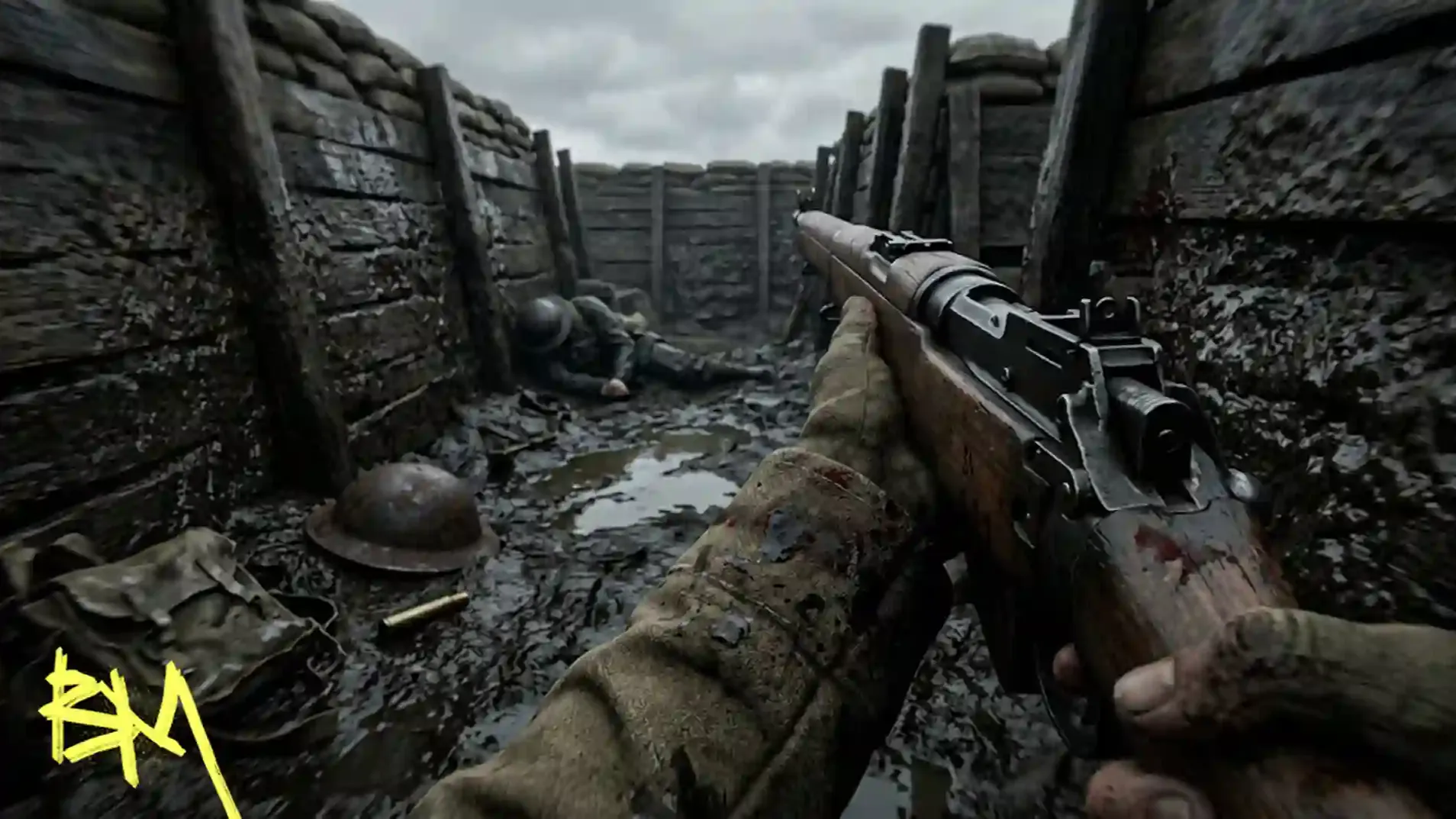
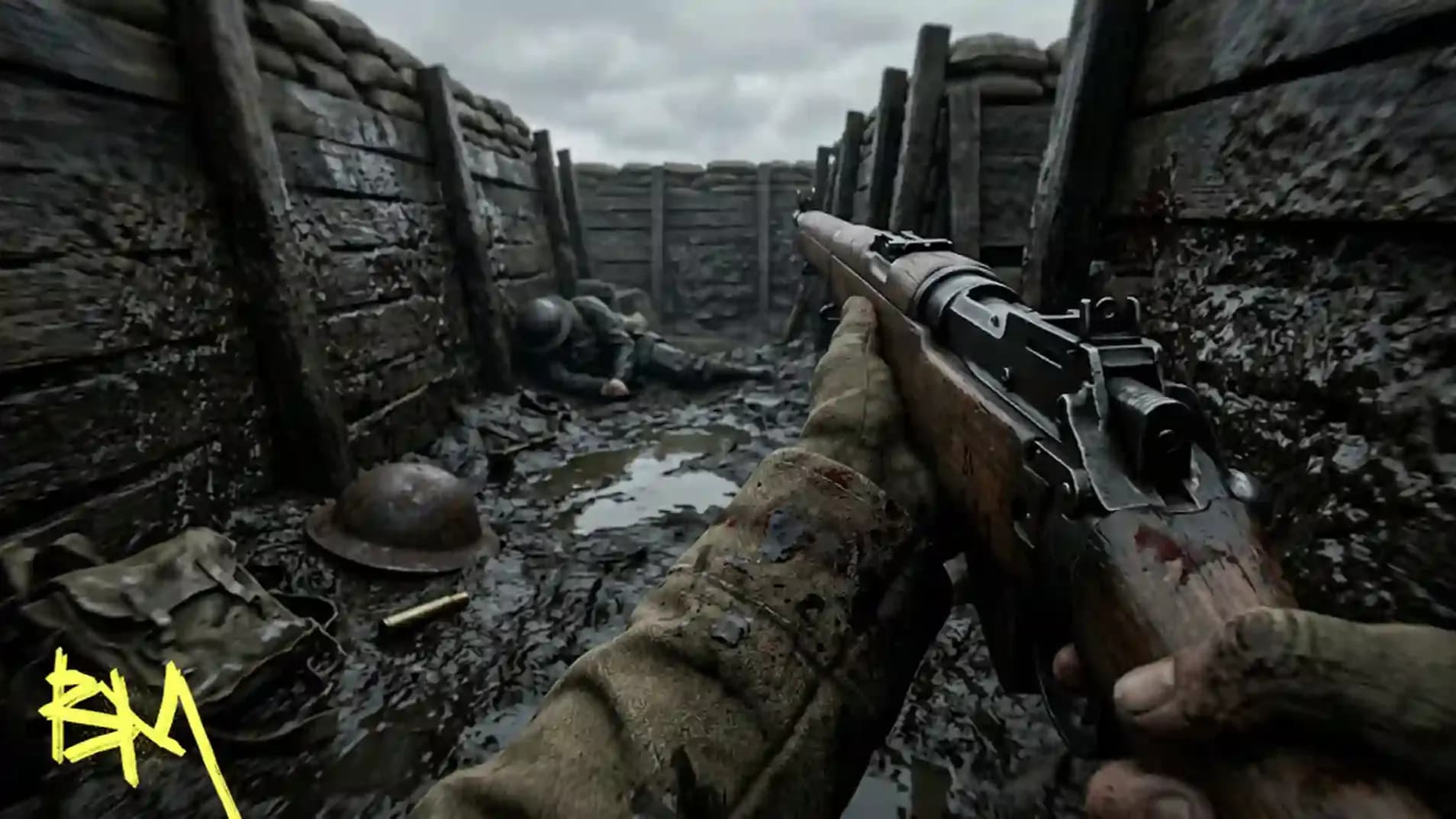
This time, let’s start with a question that few ever ask. Who’s the real king of Battlefield 6 performance? The player with the best aim? The guy with a 4090 GPU? Or the one who actually knows how to tune the game right? Sounds simple, but it’s not.
We’ll break it all down:
Battlefield 6 runs fast only for those who treat it like a machine — every frame counts, every setting matters. The meta setup, the Reflex tweaks, the DLSS vs FSR battle — all of it plays a part. You can buy power, sure, but smoothness? That comes from precision.
So what are we doing here? We’re not going to talk about “beautiful graphics” or “cinematic vibes.” Forget that. This Battlefield 6 optimization guide gives you pure performance — max FPS, low input lag, and clean sightlines.
We’ll go through everything — in-game settings, console commands, driver tricks, and even system tuning.
If you’re reading this, you might be interested in a discount just for you—my blog reader! Use code CRINGEBLOG to get an amazing discount on Battlefield 6 services in our shop.
You want raw speed and clean aim. This battlefield 6 optimization guide starts with in-game controls that cut delay and raise frames fast. Fullscreen for the lowest input time, native resolution, refresh rate matched to the monitor, V-Sync off, NVIDIA Reflex enabled. Build a Custom preset from Low, then raise Texture Quality to High, keep Mesh and Terrain on Medium, set Volumetric to Low, set Reflections to Low, turn SSR off, turn AO and GI off. This mix pushes battlefield 6 max fps and keeps the image sharp for targets.
Upscaling is your next boost. For cards with DLSS, pick Quality mode, it gives strong gains with clean edges, and it wins in most battlefield 6 dlss vs fsr tests. For AMD or older cards, FSR Quality works, Balanced if you need extra frames. Skip Frame Generation on mouse and keyboard to keep input tight, keep the frame limiter off for the peak number, use the Performance Overlay to watch GPU and CPU load. For an extra punch, open the console and set WorldRender.TileCSPathEnable 0, expect a further lift on heavy maps.
Lock these battlefield 6 performance settings and battlefield 6 graphics settings before you grind. You get lower latency, steadier frame times, and a clear sight picture in every fight. Run this setup, push hard, and the game stays smooth under fire.
Follow this battlefield 6 optimization guide and lock battlefield 6 performance settings that hit battlefield 6 max fps with a clean image and a tight battlefield 6 low latency setup. Use a Custom preset from Low, keep effects light, kill reflections and SSR, enable Reflex, and pick DLSS Quality in the classic battlefield 6 dlss vs fsr matchup if your GPU supports it. These battlefield 6 graphics settings give sharp targets, stable frame time, and fast Battlefield 6 RedSec.
| Setting | Best value for max FPS | Why |
|---|---|---|
| Display Mode | Fullscreen | Lowest input delay |
| Resolution | Native | Sharp image without scale cost |
| Refresh Rate | Monitor max | Highest frame headroom |
| V-Sync | Off | Removes frame cap and delay |
| Frame Limiter | Off | Peak FPS and lowest latency |
| Dynamic Resolution Scale | Off | Stable image for aiming |
| Resolution Scale | Fixed 100% | Native detail for visibility |
| Graphics Preset | Custom from Low | Full control over heavy options |
| Texture Quality | High | Free quality, tiny FPS cost |
| Texture Filtering | High or Ultra | Free clarity on surfaces |
| Mesh Quality | Medium | Small cost, clean geometry |
| Terrain Quality | Medium | Small cost, stable maps |
| Undergrowth | Low | Fewer distractions |
| Effects Quality | Low | Extra stability in fights |
| Volumetric Quality | Low | Big FPS gain on busy scenes |
| Lighting Quality | High | Style upgrade, minimal cost |
| Local Light | High | Minimal cost, clear interiors |
| Sun Shadow Quality | Medium | Safe balance |
| Shadow Filtering | PCF or PCSS | Same FPS, clean edges |
| Reflection Quality | Low | Heavy on GPU when higher |
| Screen Space Reflections | Off | Strong FPS boost, clearer sight |
| Post Processing Quality | Any | Tiny impact overall |
| High Fidelity Objects | Medium | Smooth streaming, stable FPS |
| Ambient Occlusion or GI | Off | Big FPS win and cleaner vision |
| NVIDIA Reflex | Enabled | Lower end-to-end latency |
| DLSS or FSR | DLSS Quality if available, else FSR Quality | Strong FPS with good clarity |
| Frame Generation | Off | Lower input delay for mouse aim |
| Future Frame Rendering | Off | Tighter input for gunfights |
| Field of View | 90 | Good view with higher FPS |
| World Motion Blur | Off | Clear tracking on targets |
| Weapon Motion Blur | Off | Crisp sights while spraying |
| Camera Shake | Lowest | Stable crosshair |
| Sprint Bobbing | Reduced | Easier tracking while moving |
| Chromatic Aberration | Off | Clean edges |
| Vignette | Off | Brighter corners for spotting |
| Film Grain | Off | Pure image for aim assist eyes |
| Performance Overlay | Simple or Extra | Track bottlenecks fast |
| Console Command | WorldRender.TileCSPathEnable 0 | Extra 15 to 30 FPS on heavy maps |
| Auto Apply | user.cfg with the command above | Loads the tweak every launch |
• Guaranteed wins, rank faster.
• Unlock mastery and XP.
• Fast, secure PRO service.
Lock the screen setup first. Fullscreen for input snap. Native resolution for clean aim. Set refresh rate to the monitor cap. Turn V-Sync off to remove delay and cap. Keep Resolution Scale fixed at 100%. Disable Dynamic Resolution Scale. Leave HDR off for stable brightness. Use the Performance Overlay for live checks. This tight display block is the base of your battlefield 6 optimization guide and pushes battlefield 6 max fps with a true battlefield 6 low latency setup.
| Setting | Best value | Effect on FPS |
|---|---|---|
| Display Mode | Fullscreen | Lower latency and steadier frames |
| Resolution | Native panel resolution | Stable sharp image, zero upscale cost |
| Refresh Rate | Monitor maximum (60/120/144/240 Hz) | Higher headroom for FPS spikes |
| V-Sync | Off | Removes frame cap and input delay |
| Resolution Scale | Fixed 100% | Native detail, stable frame time |
| Dynamic Resolution Scale | Off | Prevents sudden drops and blur |
| HDR | Off | Avoids tone-mapping overhead and flicker risk |
| Future Frame Rendering | Off | Tighter input timing for fights |
| Frame Limiter | Off | Highest peak FPS and lowest latency |
| Performance Overlay | Simple or Extra | Tiny cost, helps find bottlenecks |
| Window Mode Alternative | Borderless only if fast Alt-Tab needed | Small latency hit vs Fullscreen |
Start from a Low preset and shape it for power. Set Texture to High for free detail and Filtering to High for sharper lines. Keep Mesh and Terrain on Medium for smooth geometry. Drop Undergrowth and Effects to Low for faster fights. Keep Volumetric Low for clean air and more FPS. Raise Lighting and Local Light to High for better visibility. Hold Sun Shadows at Medium, Shadow Filtering on PCF or PCSS, Reflections Low, and SSR Off. Turn AO and GI Off to free frames. Set High Fidelity Objects to Medium, Post Processing as you like. Use DLSS Quality or FSR Quality for extra boost, and keep Frame Generation Off for fast mouse aim. These battlefield 6 graphics settings build clean sight, high frame rate, and full control inside a sharp battlefield 6 optimization guide for Battlefield 6 rank help.
| Setting | Best value | Effect on FPS |
|---|---|---|
| Texture Quality | High | Near free cost. Keep detail if VRAM is under limit |
| Texture Filtering | High or Ultra | Near free cost. Crisper surfaces |
| Mesh Quality | Medium | Tiny change. 129 to 135 FPS band in tests |
| Terrain Quality | Medium | Small cost. Stable maps and sightlines |
| Undergrowth | Low | Small gain. Less clutter on screen |
| Effects Quality | Low | Small gain. More stable fights |
| Volumetric Quality | Low | Big gain. 172 FPS Low vs 155 FPS Ultra |
| Lighting Quality | High | Minimal cost. Clear indoor vision |
| Local Light | High | Minimal cost. Better object read |
| Sun Shadow Quality | Medium | Small cost. Safe balance |
| Shadow Filtering | PCF or PCSS | Similar FPS. Cleaner edges |
| Reflection Quality | Low | Strong gain. 116 FPS Low vs 102 FPS High |
| Screen Space Reflections (SSR) | Off | Strong gain. 136 FPS Off vs 122 FPS High |
| Ambient Occlusion / Global Illumination | Off | Large gain. 138 FPS Off vs 109 FPS SSGI High |
| Post Processing Quality | Any | Tiny impact overall |
| High Fidelity Objects | Medium | Tiny impact. Smoother streaming |
| Sharpness | 5 to 20 | Keeps clarity without shimmer |
| Resolution Scale | Fixed 100% | Stable image and frame time |
| DLSS or FSR | DLSS Quality if supported, else FSR Quality | +20 to +30 FPS with good clarity in the battlefield 6 dlss vs fsr choice |
| Frame Generation | Off | Lower input delay for mouse aim |
| Future Frame Rendering | Off | Tighter input timing in gunfights |
Push beyond presets. Open the console, cut hidden costs, and keep input razor sharp. Use the TileCSPath switch for a clean boost, load it on startup with user.cfg, pick DLSS Quality or FSR Quality for free headroom, hold Frame Generation off for mouse aim, and watch the overlay to hunt bottlenecks. This tight block upgrades your battlefield 6 optimization guide with real gains for battlefield 6 max fps and a hard battlefield 6 low latency setup.
| Option | How to set | Effect on FPS |
|---|---|---|
| Command Console enabled | Options → System → Enable Command Console. Press tilde in match | No change by itself |
| TileCSPath toggle | Console: WorldRender.TileCSPathEnable 0 | +15 to +30 FPS on heavy scenes |
| user.cfg auto-apply | Create user.cfg in game folder. Add WorldRender.TileCSPathEnable 0 | Same FPS boost on every launch |
| DLSS vs FSR upscaling | DLSS Quality if supported. Else FSR Quality | +20 to +30 FPS with clean image |
| Frame Generation | Off for mouse and keyboard. On is fine for controller | Off lowers input delay. Shown FPS lower than FG On |
| Future Frame Rendering | Off | Lower input lag. FPS change is tiny |
| Frame Rate Limiter | Off for max. If streaming, cap 10 to 15 below average | Off gives peak FPS. Cap gives steadier frames |
| Performance Overlay | Options → Graphics → Performance Overlay (Advanced) | Tiny cost. Faster tuning and higher sustained FPS after fixes |
| HD Texture packs | Uninstall extra HD packs in game content manager | Small FPS gain. Lower VRAM spikes and stutter |
| Sharpness | 5 to 20 in Graphics | Clarity gain. FPS impact is minimal |
| NVIDIA Reflex | Enabled | Lower end-to-end latency. FPS stays stable |
| Dynamic Resolution Scale | Off. Use DLSS or FSR instead | Prevents blur. Keeps frame time stable |
| Restart after big tweaks | Quit to desktop after heavy changes | Restores full performance consistency |
We squeeze frames outside the game. Clean Nvidia driver. Clean Windows. Kill latency. Push clocks. Lock stable power. No fluff. This block turns your PC into a Battlefield 6 machine and feeds your battlefield 6 max fps target. It pairs with your in-game battlefield 6 performance settings and keeps a strict battlefield 6 low latency setup.
| Area | Setting | Best value | Effect on FPS |
|---|---|---|---|
| NVIDIA Control Panel | Power Management Mode | Prefer maximum performance | Small to medium gain. Stops downclock dips |
| NVIDIA Control Panel | Low Latency Mode | Off (use Reflex in-game) | Lowest stutter. Keeps latency clean |
| NVIDIA Control Panel | Shader Cache | 10 GB | Faster shaders. Fewer hitches |
| NVIDIA Control Panel | Texture Filtering Quality | High performance | Small gain. Extra headroom in smoke and effects |
| NVIDIA Control Panel | Vertical Sync | Off | Removes cap and input delay |
| NVIDIA Control Panel | Max Frame Rate | Off | Peak FPS. Use only for stream caps |
| NVIDIA Control Panel | Anisotropic/AA overrides | Application-controlled | Stable IQ. No driver fights with game |
| Windows Graphics Settings | Battlefield 6 GPU preference | High performance (your Nvidia GPU) | Small gain. Forces dGPU path |
| Windows System | Game Mode | On | Background noise down. Small gain |
| Windows System | Hardware-Accelerated GPU Scheduling | On | Latency down. Small gain to 1% lows |
| Windows System | Variable Refresh Rate | On (supported monitors) | Smoother frame pacing. Perceived FPS up |
| Windows System | Xbox Game Bar (Win10) | Off | Removes overlay cost |
| Windows System | Fullscreen Optimizations | Disabled on BF6 .exe | More consistent input timing |
| Windows System | Mouse “Enhance pointer precision” | Off | Raw aim feel. Latency down |
| Windows UI | Transparency effects | Off | Tiny gain. Fewer spikes on alt-tab |
| Windows Security | Memory Integrity | Off | Latency down on some rigs |
| Power Plan | Windows Power Plan | Balanced | Best boost behavior. Stable clocks |
| Power Plan | PCIe Link State Power Management | Off | Prevents GPU throttling under load |
| Storage | Shader/Cache location | On fast NVMe | Faster loads. Fewer microstutters |
| Drivers | GPU Driver | Latest Game-Ready | Bug fixes and optimizations |
| BIOS | Resizable BAR | Enabled | Small to medium gain in heavy scenes |
| BIOS | PCIe Mode | Gen 4 or Gen 5 (supported board) | Bandwidth headroom. Small gain |
| Cleanup | Temp files and prefetch | Clear monthly | Smoother updates. Tiny gain to load times |
| Recording | Background capture | Off during play | Frees CPU and disk. 1% lows up |
| Network | Overlay and rich presence | Off | Fewer spikes on packet bursts |
You want the game to run even on a toaster. Potato Mode strips everything that eats performance and leaves you with raw speed and clean sight. Forget fancy lights, fog, and shiny water. You play to win. This setup rips every useless frame-killer out of Battlefield 6 and turns it into a smooth, brutal machine for pure kills and instant response. It is the core of this battlefield 6 optimization guide, built for stable aim, max clarity, and absolute Battlefield 6 weapons.
| Setting | Best value | Effect on FPS |
|---|---|---|
| Display Mode | Fullscreen | Lowest input delay |
| Resolution | 1280×720 or lower | +40 to +70 FPS depending on GPU |
| V-Sync | Off | Removes frame cap and delay |
| Frame Limiter | Off | Peak frame rate |
| Texture Quality | Low | +10 to +15 FPS |
| Texture Filtering | Low | Small gain |
| Mesh Quality | Low | +5 FPS, faster geometry load |
| Terrain Quality | Low | +3 to +5 FPS |
| Undergrowth | Low | +5 FPS, clearer vision |
| Effects Quality | Low | +10 FPS, no smoke lag |
| Volumetric Quality | Low | +15 to +20 FPS |
| Lighting Quality | Low | +5 FPS |
| Local Light | Low | +3 FPS |
| Sun Shadow Quality | Low | +5 FPS |
| Shadow Filtering | PCF | Stable edges, no cost |
| Reflection Quality | Low | +10 FPS |
| Screen Space Reflections (SSR) | Off | +15 FPS |
| Ambient Occlusion / GI | Off | +25 FPS |
| Post Processing Quality | Low | +5 FPS |
| High Fidelity Objects | Low | +5 FPS |
| Motion Blur | Off | Clear aim, no delay |
| Film Grain / Vignette / Chromatic Aberration | Off | Clean image, no GPU waste |
| DLSS / FSR | DLSS Performance or FSR Balanced | +20 to +30 FPS |
| NVIDIA Reflex | Enabled | Lower latency |
| Frame Generation | Off | Lower input delay |
| Resolution Scale | 80% or 100% fixed | Higher frame rate if 80% |
| Dynamic Resolution | Off | Prevents sudden drops |
| Console Command | WorldRender.TileCSPathEnable 0 | +15 to +30 FPS |
| Windows Graphics Setting | High performance GPU for Battlefield 6 | +5 FPS stability |
| Hardware Accelerated GPU Scheduling | On | Latency drop |
| Power Plan | Balanced or High Performance | Keeps stable clocks |
| Game Mode | On | Cleaner background usage |
Crashes. Stutters. FPS drops. You fix them fast and get back in. This part of the battlefield 6 optimization guide clears every common problem that kills flow. No guessing. Just direct fixes that bring stability, clean frames, and a faster start. Run the steps, reboot once, and launch again. The result is full battlefield 6 max fps with zero distractions.
| Problem | Fix |
|---|---|
| Game crashes on start | Run Battlefield 6 as Administrator. Turn off overlays from Discord, Steam, and GeForce Experience. |
| EA Anti-Cheat error | Reinstall EA Anti-Cheat. Verify game files. Enable Secure Boot and TPM 2.0 in BIOS. |
| Sudden FPS drops | Delete shader cache from Documents\Battlefield 6\Settings. Restart the game. |
| Stutters during match | Turn off Windows and Xbox background recording. Stop OBS when not streaming. |
| GPU load high but FPS low | Set Battlefield 6 to High Performance GPU in Windows. Disable integrated graphics. |
| CPU always maxed | Close browsers, antivirus scans, RGB tools, and launchers. |
| VRAM usage too high | Lower Texture Quality. Remove HD texture packs. |
| Screen tearing | Use Borderless or cap FPS slightly below monitor refresh rate. |
| Input feels slow | Use Fullscreen. Turn off V-Sync. Enable NVIDIA Reflex. |
| DLSS or FSR looks blurry | Switch to Quality mode. Avoid Performance mode at low resolution. |
| Lighting or shadows glitch | In console type WorldRender.TileCSPathEnable 1, then back to 0. |
| Audio out of sync | Switch sound to Stereo. Turn off spatial audio. |
| Long map loading | Move game to SSD or NVMe drive. |
| FPS drop after Windows update | Reinstall clean NVIDIA drivers with DDU. |
| Freeze after Alt-Tab | Use Borderless mode. |
| Mouse acts weird | Turn off “Enhance pointer precision” in Windows. |
| Random freeze or hang | Disable Xbox Game Bar and Game DVR. |
| FPS loss after patch | Delete config files. Reset settings and retune with this guide. |
| Rubberband or lag | Use wired connection. Close browsers and downloads. |
| FPS stuck at 60 | Check V-Sync in game and driver. Both must be Off. |
• Guaranteed wins, rank faster.
• Unlock mastery and XP.
• Fast, secure PRO service.
This Battlefield 6 Optimization Guide is a full system blueprint for players who want maximum FPS, zero delay, and the cleanest aim possible. Each part — from display setup to graphics tuning — builds a chain where every setting matters. The guide shows how to shape the game for performance first and clarity second. Nothing here is guesswork. Every option was tested, compared, and trimmed down to push pure Battlefield 6 leveling.
Inside the game, Fullscreen, V-Sync Off, Reflex On, and a Custom Low-based preset form the foundation. Upscaling with DLSS Quality or FSR Quality gives high frame boosts with sharp visuals. Console commands like WorldRender.TileCSPathEnable 0 lift performance further, especially on large maps. Together, these changes deliver steady frame time, fast reactions, and stable visuals across all modes.
Outside the game, the Extreme Optimization block tightens the system itself. Clean drivers, tuned NVIDIA panel, high-performance power plan, and Windows trimmed of background noise — all combine for stable, low-latency output. The setup cuts hidden delay between GPU, CPU, and display, turning the PC into a smooth, aggressive Battlefield 6 platform.
For weaker rigs, Potato Mode ensures playability without losing control. It removes all heavy visuals and keeps gameplay fast, sharp, and fluid. Every drop of performance goes straight into responsive gunplay. No wasted frames, no blurred motion — only clear sight and maximum kills.
In short, this Battlefield 6 optimization guide transforms any setup — high-end or low-end — into a precision tool. It removes bottlenecks, balances clarity with power, and locks every frame into smooth control. Run it once, save the config, and Battlefield 6 becomes faster, cleaner, and sharper than ever.

Your Battlefield 6 runs slow? Fix it now. Our optimization guide hits max FPS, cuts lag, and makes your aim clean. Tune it once, win every fight.
Your Battlefield 6 runs slow? Fix it now. Our optimization guide hits max FPS, cuts lag, and makes your aim clean. Tune it once, win every fight.
Your Battlefield 6 runs slow? Fix it now. Our optimization guide hits max FPS, cuts lag, and makes your aim clean. Tune it once, win every fight.
Your Battlefield 6 runs slow? Fix it now. Our optimization guide hits max FPS, cuts lag, and makes your aim clean. Tune it once, win every fight.
Your Battlefield 6 runs slow? Fix it now. Our optimization guide hits max FPS, cuts lag, and makes your aim clean. Tune it once, win every fight.
Your Battlefield 6 runs slow? Fix it now. Our optimization guide hits max FPS, cuts lag, and makes your aim clean. Tune it once, win every fight.

Because raw power means victory. Battlefield 6 optimization removes useless effects, shortens delay, and gives higher FPS. With the right setup, the game feels faster, aim becomes cleaner, and every shot reacts instantly. You do not fight your PC — you fight enemies only.
Turn off V-Sync, use Fullscreen, start from a Low preset, and switch Battlefield 6 DLSS or FSR to Quality mode. These steps give the biggest change in speed. Then use the console command WorldRender.TileCSPathEnable 0 for extra frames on heavy Battlefield 6 maps.
Reflections, Volumetric effects, Global Illumination, and Screen Space Reflections kill FPS fast in Battlefield 6. Keep them Low or Off. They look nice but waste power. You do not need glowing puddles to win fights.
Use NVIDIA Reflex, Fullscreen mode, and turn Future Frame Rendering Off in Battlefield 6. Disable V-Sync and Frame Generation if you play with mouse and keyboard. This gives instant aim response with no extra lag.
Clean your GPU drivers, turn off overlays like Discord or Steam, and delete shader cache for Battlefield 6. Make sure Battlefield 6 uses your high-performance GPU in Windows. Restart after every big change for full effect.
Battlefield 6 Potato Mode is the fastest setup for weak PCs. It removes all fancy lights, smoke, and blur. You get a clear image, simple shadows, and maximum FPS. It makes Battlefield 6 smooth even on old hardware.
Use Battlefield 6 DLSS Quality if your GPU supports it. If not, choose Battlefield 6 FSR Quality. Both make the game faster and sharper. DLSS usually looks cleaner, but both are good for high performance.
Yes. The Battlefield 6 optimization setup works great for many FPS games. Fullscreen, V-Sync Off, Reflex On, and low post effects give the same benefit — clear view, low delay, high speed.
Every big Battlefield 6 patch or driver update. Sometimes updates change how graphics work. After an update, open Battlefield 6, check FPS, and retune small things. This keeps your system ready for every battle.

GTA 6, new seasons, major updates — get ready to dominate from day one.