







WoW Boost
World of Warcraft Love is in the Air Guide 2026
Is WoW: Midnight melting your GPU? Don't panic! We have the ultimate survival guide to fix your FPS, tweak your settings, and save your raid!
 dummy_writer
Congratulations. You've decided to play the expansion set in Quel'Thalas, a zone so gorgeous it will make your GPU weep actual tears. Liquid tears. Into liquid detail you've set to Ultra. On a GTX 1060. World of Warcraft: Midnight takes place in the elven lands of Quel'Thalas, plunging players into a war between the Light and Xal'atath's Void army. It features updated lighting systems, reworked character models, enhanced particle effects for all that cosmic destruction, and zone design specifically engineered to crater your framerate at the worst possible moment: usually right as a boss does something you need to dodge. So does it sound as a great idea to view our WoW Midnight PC optimization guide?
Unlike most modern games, WoW carries 20 years of technical debt. The engine is fundamentally CPU-bound in group content, meaning your shiny RTX 4090 will sit at 40% utilization while your CPU single-handedly tries to calculate what 39 other players, 400 spell effects, and a world boss are all doing simultaneously. Understanding this quirk is the single most important thing before you touch any slider.
Important WoW: Midnight is the most demanding expansion Blizzard has ever shipped. Even players with RTX 4090s and i9-13900Ks have reported needing to lower settings during Midnight's pre-patch. This is a known engine limitation, not a "your PC sucks" situation. Mostly.
So it’s time to learn:
And of course. How to finally optimize the Wow Midnight for the every potato you called a PC
Blizzard looked at the 2024 recommended requirements, thought "these seem reasonable," then bumped them by two entire CPU generations and a full GPU generation. For the same WoW. That has existed since 2004.
The floor. "It will technically launch" territory. Possibly.
|
Component |
Minimum (Midnight) |
Previous (The War Within) |
Notes |
|
Operating System |
Windows 10 64-bit |
Windows 7 64-bit |
Windows 7 players, rest in peace |
|
CPU |
6 Cores, 4.0 GHz |
4 Cores, 3.0 GHz |
A substantial jump. That i7-4770 is now officially retired |
|
GPU |
NVIDIA GTX 1000 series |
NVIDIA GTX 900 series |
Minimum VRAM goes from 3 GB → 4 GB |
|
RAM |
8 GB |
8 GB |
Technically unchanged, practically you want 16 GB |
|
Storage |
128 GB SSD |
100 GB HDD/SSD |
SSD is now required. HDDs are officially abandoned |
|
Internet |
Broadband |
Broadband |
Recommend 30+ Mbps for raids without packet loss |
|
API |
DirectX 12 |
DirectX 12 |
DX11 still works as a fallback |
If you’re reading this, you might be interested in a discount just for you—my blog reader! Use code CRINGEBLOG to get an amazing discount on any offer in our shop.
The target. "You can actually see the beautiful elf zones" territory. Prepare your wallet.
|
Component |
Recommended (Midnight) |
Previous (The War Within) |
Notes |
|
Operating System |
Windows 11 64-bit |
Windows 10 64-bit |
DirectStorage benefits on Win11 with NVMe |
|
CPU |
8 Performance Cores, 5.2 GHz |
6 Cores, 3.5 GHz |
Massive jump: this is literally the current-gen flagship spec |
|
GPU |
NVIDIA RTX 4000 series |
NVIDIA RTX 3000+ series |
VRAM doubles from 4 GB → 8 GB recommended |
|
RAM |
16 GB |
16 GB |
Still 16 GB; 32 GB helps for streaming/heavy addon use |
|
Storage |
128 GB SSD (NVMe recommended) |
100 GB SSD |
NVMe cuts zone transition times dramatically |
|
Internet |
Broadband |
Broadband |
Stable >30 Mbps; low ping matters more than bandwidth in raids |
The Storage Reality Check Blizzard lists 128 GB but the current live installation is already north of 120–156 GB on many machines, and will grow with every patch. Realistically, budget 200 GB by end-of-expansion. Don't install this on a 256 GB drive you also need for Windows and your soul.






Where does your card actually land? Here's the honest answer.
|
GPU |
Status |
1080p Performance |
1440p Performance |
Verdict |
|
RTX 4090 |
Recommended+ |
120+ FPS Ultra |
100+ FPS Ultra |
Will still bottleneck on CPU in 40-man raids. Good luck |
|
RTX 4080 / 4070 Ti |
Recommended |
100+ FPS High-Ultra |
80+ FPS High |
Great. Still CPU-limited during raid boss pulls |
|
RTX 4070 / 4060 Ti |
Recommended |
80+ FPS High |
60 FPS High |
The sweet spot for most players in 2026 |
|
RTX 3080 / 3070 |
Minimum+ |
60–80 FPS High |
50–65 FPS Medium |
Still perfectly playable, some tweaks needed for raids |
|
RTX 3060 / RX 6700 XT |
Minimum+ |
55–70 FPS Medium |
40–55 FPS Medium |
This guide was written for you |
|
RTX 2080 / RX 5700 XT |
Minimum Edge |
45–60 FPS Medium |
30–45 FPS Low-Med |
Optimization required. Shadow Quality is not your friend |
|
GTX 1080 / RX 580 |
Below Min |
30–45 FPS Low |
Sub-30 FPS |
You will survive. With dignity? No. |
|
GTX 1060 or lower |
Unsupported |
Unstable / Crashes |
No |
Time to upgrade. No seriously. |
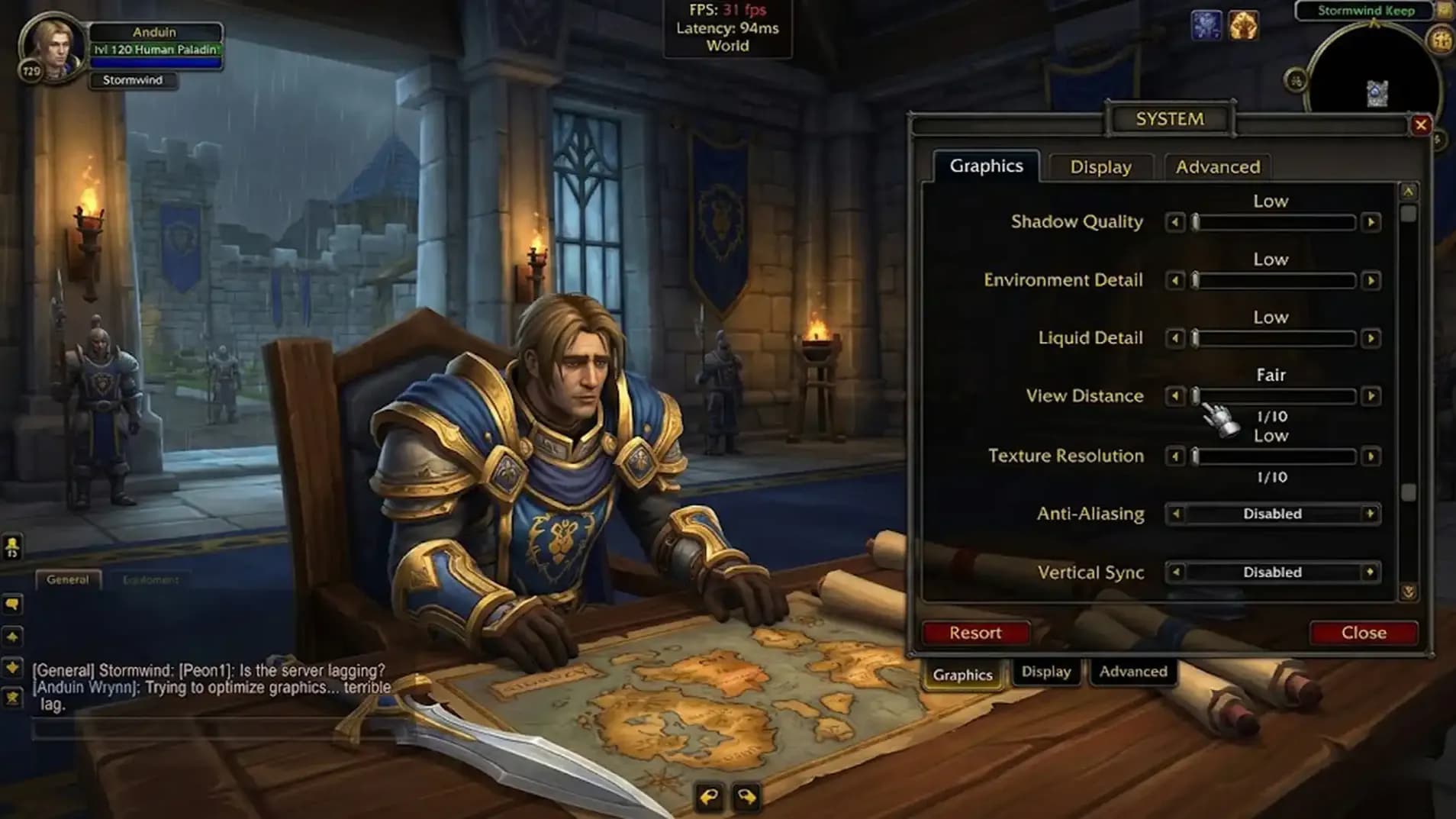
WoW is famously CPU-bound in group content. The game's main thread runs calculations for the entire visible world, every player, every mob, every spell effect: sequentially. This is why high single-core clock speed matters more than raw core count for WoW specifically.
|
CPU |
Raid Bottleneck Risk |
|
AMD Ryzen 7 7800X3D / 9800X3D |
Low |
|
Intel Core Ultra 200 Series |
Low |
|
Intel i9-13900K / i7-13700K |
Low–Med |
|
AMD Ryzen 7 5800X3D |
Low–Med |
|
Ryzen 5 5600X / i5-12600K |
Med |
|
i7-8700K / Ryzen 5 3600 |
High |
|
i5-8400 / Ryzen 5 2600 |
Very High |
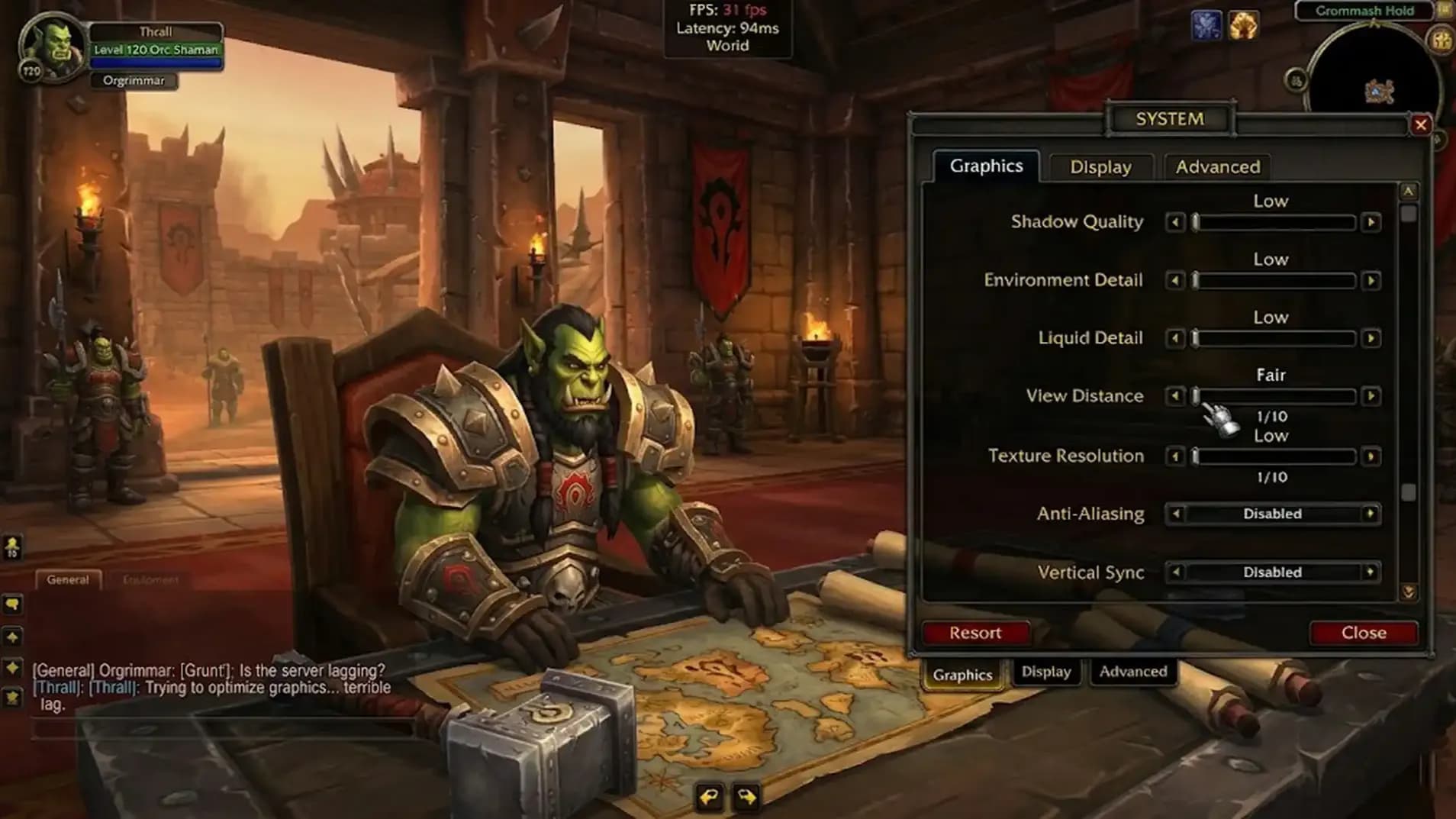



Against all odds, WoW on Mac is actually excellent. Blizzard has supported macOS natively since 2004, added Metal support (replacing OpenGL for a 61% performance boost), and added native Apple Silicon support on Day 1 of M1. Your M4 Pro MacBook Pro will handle WoW better than a mid-range gaming PC. Annoying but true.
|
Spec |
macOS Minimum |
macOS Recommended |
|
OS Version |
macOS 13 Ventura |
macOS 15 Sequoia |
|
CPU (Apple Silicon) |
Apple M2 |
Apple M3 Pro or higher |
|
CPU (Intel) |
Intel Core i5 (6th Gen or later) |
Intel Core i9 or higher |
|
GPU |
Metal-capable GPU, 4 GB |
Apple M3 GPU / AMD RX 6000 (eGPU) |
|
RAM |
8 GB |
16 GB unified memory |
|
Storage |
128 GB SSD |
256 GB NVMe SSD |
|
API |
Metal |
Metal |
M1 Mac Note The official minimum is now M2. However, M1 Macs can still run WoW but may face performance issues in demanding content. M1 Pro/Max will perform much better than base M1. If you're on base M1, expect some tweaking.
✓ Mac-Specific Tips Use Windowed Fullscreen mode: it helps macOS manage resources better. Disable Dynamic Shadows if FPS dips in raids. Don't run at 4K unless you have an M3 Pro or better. Monitor Activity Monitor during play: background processes love to spike on Mac during game sessions.
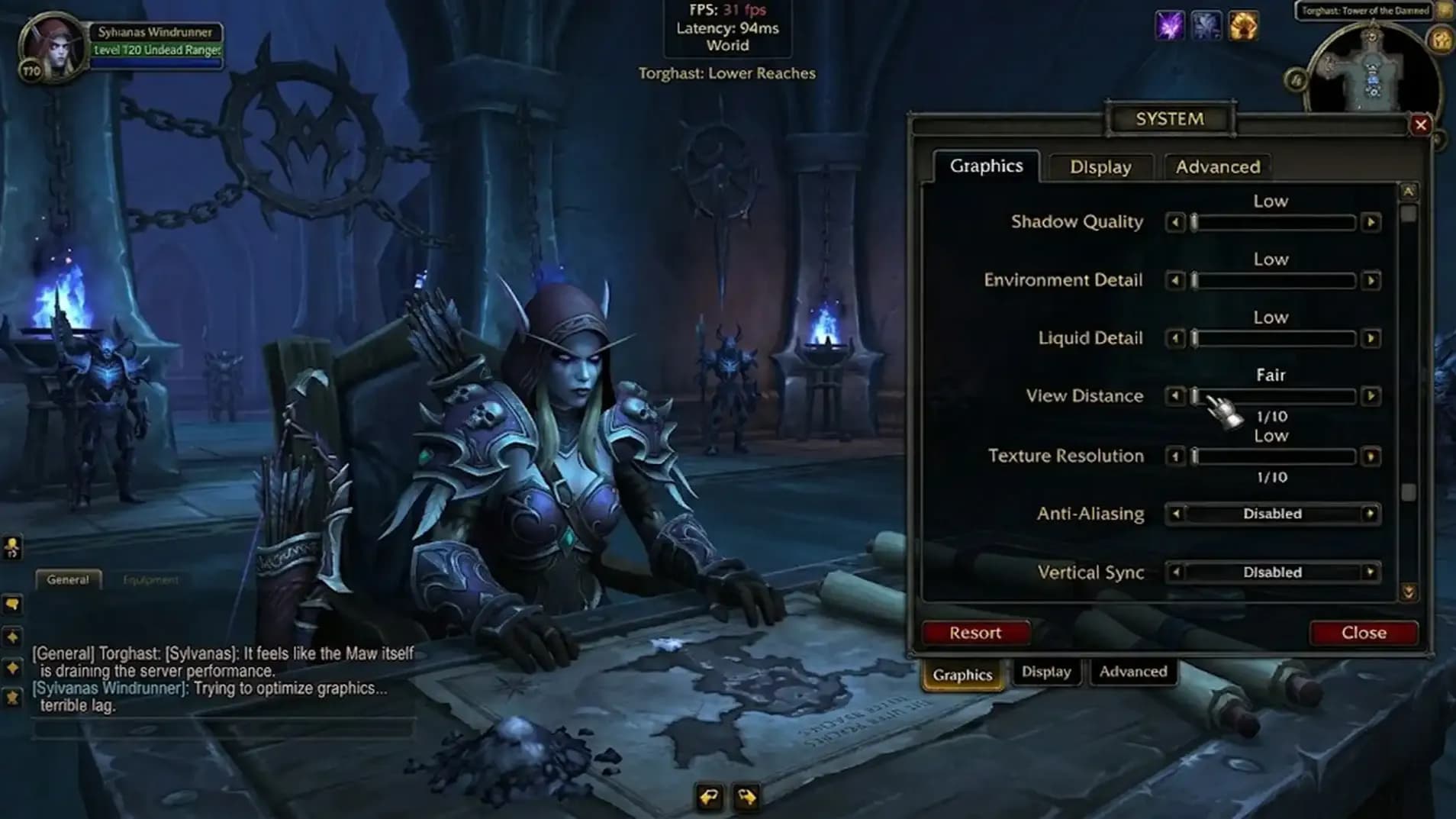
Before you blindly slam every slider to Low, understand why WoW is weird. Because it is very, very weird.
WoW has two distinct performance modes depending on what you're doing. In open-world zones and solo content, you're typically GPU-bound: your graphics card is the limiting factor. In raids, dungeons, and crowded cities, you're almost certainly CPU-bound: your processor is the bottleneck, and your GPU is sitting there waiting.
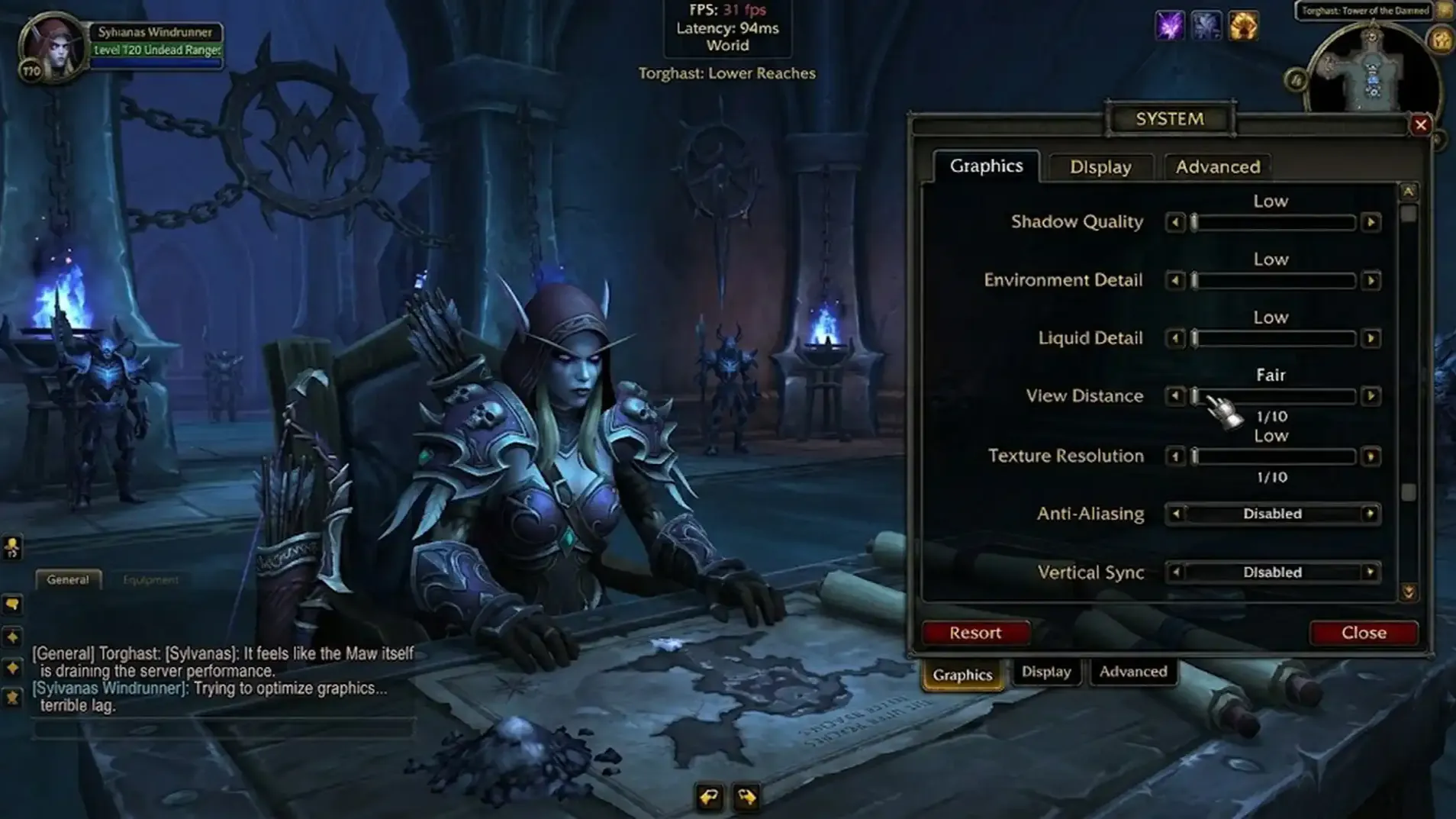
This means lowering your render scale (a GPU setting) will barely help you in a 40-man raid. But lowering View Distance and Environmental Detail (CPU-heavy settings) will. Applying this knowledge correctly is worth more than any other tip in this guide.
Stand in a busy location: Silvermoon City hub, a raid, a world event: and run these tests:
|
Test |
What to Change |
FPS Jumps a Lot? |
FPS Barely Changes? |
|
Test A |
Lower Resolution Scale (100% → 70%) |
You are GPU-bound → lower visual quality settings |
You are CPU-bound → resolution changes do nothing here |
|
Test B |
Lower View Distance + Environmental Detail |
You are CPU-bound → these settings are your main lever |
Something else is the bottleneck: check addons and background processes |
The X3D Advantage AMD's Ryzen X3D processors (5800X3D, 7800X3D, 9800X3D) have large L3 cache that acts as ultra-fast buffer memory for WoW's world-state calculations. In raids, X3D chips can provide 15–30% better FPS over equivalent non-X3D chips. If you're upgrading a CPU specifically for WoW, this is the answer.
Finally. The section you scrolled here for. Every setting, what it actually does, and the FPS cost you're paying for the privilege.
|
Setting |
Recommended |
FPS Impact |
Notes |
|
Display Mode |
Windowed (Fullscreen) |
Low |
True Fullscreen can give marginally better perf but Alt+Tab crashes. Not worth it |
|
Resolution |
Native monitor resolution |
Med |
Always run native. Use Render Scale to adjust load, not this |
|
V-Sync |
Off |
Med |
Adds input lag. Use FPS cap instead. Enable only if you have severe screen tearing |
|
FPS Cap |
1–2x your monitor refresh rate |
— |
Unlimited FPS causes GPU heat spikes and inconsistent frametimes. Cap it |
|
DirectX Version |
DirectX 12 |
Med |
DX12 gives better frametime stability on modern hardware. DX11 if you crash |
|
Setting |
Performance Pick |
Balanced Pick |
Quality Pick |
FPS Impact |
Notes |
|
Render Scale |
75% |
90–95% |
100% |
Very High (GPU) |
Single biggest GPU lever. 90% is virtually indistinguishable at 1080p. Pair with sharpening command below |
|
Anti-Aliasing |
CMAA |
CMAA |
MSAA 2x |
Med (GPU) |
CMAA is the best perf/quality ratio. FXAA looks blurry. MSAA is expensive |
|
Shadow Quality |
Low |
Fair–Good |
High |
Very High (CPU+GPU) |
The #1 FPS killer in cities and forests. Low→Ultra can cost 30–40% FPS. Never run Ultra |
|
Liquid Detail |
Fair |
Good |
Ultra |
Med (GPU) |
High cost in zones with heavy water/void liquid surfaces. Quel'Thalas has a lot of water |
|
Sunshafts |
Low |
Good |
Ultra |
Med (GPU) |
The volumetric god-rays. Looks gorgeous. Costs frames. Pick your poison |
|
Particle Density |
Essential or Reduced |
Good |
Ultra |
Med (GPU+CPU) |
⚠ Do NOT set to Low: boss mechanics become invisible and you'll die. "Essential" keeps the important ones |
|
SSAO |
Off |
Low |
High |
Med (GPU) |
Ambient occlusion adds depth to environments. Pretty but costly. First thing to disable for performance |
|
Depth Effects |
Off |
Low |
Ultra |
Med (GPU) |
Blur effects on distant objects. Pure aesthetics, zero gameplay value, costs frames |
|
Texture Resolution |
High |
High |
Ultra |
Low (VRAM) |
Almost zero FPS cost if you have 6+ GB VRAM. Keep it High unless you have constant stuttering from VRAM overflow |
|
Texture Filtering |
Trilinear |
16x Anisotropic |
16x Anisotropic |
Minimal |
16x Anisotropic is nearly free on modern hardware. Makes textures look sharper at angles. Just use it |
|
View Distance |
3–5 |
5–7 |
8–10 |
Very High (CPU) |
Massive CPU impact. Dropping from 10 → 5 can recover 20–30 FPS in crowded zones. Silent Hill fog is the tradeoff |
|
Environment Detail |
3–5 |
5–7 |
8–10 |
High (CPU) |
Grass density, foliage, small object detail. CPU-heavy. Reduces it before View Distance if raid-bottlenecked |
|
Ground Clutter |
3–5 |
5–7 |
8–10 |
Med (CPU) |
Pebbles, leaves, debris on the ground. Nobody actually cares about pebbles. Drop this guilt-free |
|
Projected Textures |
Always ON |
Always ON |
Always ON |
Negligible |
⛔ NEVER disable this. It renders void zones, fire patches, healing circles, and boss mechanics on the ground. Disable it and die. The performance gain is near zero anyway |
|
Outline Mode |
High |
High |
High |
Low |
Helps identify players and NPCs in chaotic fights. Keep it on High for visibility, negligible cost |
|
Spell Density |
Essential |
Reduced |
Everything |
Med (GPU+CPU) |
"Essential" = only your own important effects. Absolute game-changer for Mythic+ and raids. Clarity AND performance |
|
Compute Effects |
Off |
Off–Low |
High |
Med (GPU) |
Advanced GPU compute-based visual effects. Disable for performance with minimal visual loss |
|
Ray Traced Shadows |
Off |
Off |
On (RTX only) |
Extremely High |
Beautiful. Crushing. Only turn on if you have an RTX 4080+ and don't raid. Even RTX 4090 owners disable this in content |
WoW Midnight has a dedicated "Raid and Battleground" graphics profile under System > Graphics > Raid and Battleground. Enable the checkbox to allow separate settings during instanced content. This is critical: your open-world settings can be higher while your raid settings are optimized for performance.
Recommended Raid Profile Shadow Quality: Low: View Distance: 4–5: Environmental Detail: 4–5: Liquid Detail: Fair: Render Scale: 90–100%: SSAO: Off: Spell Density: Essential: Compute Effects: Off
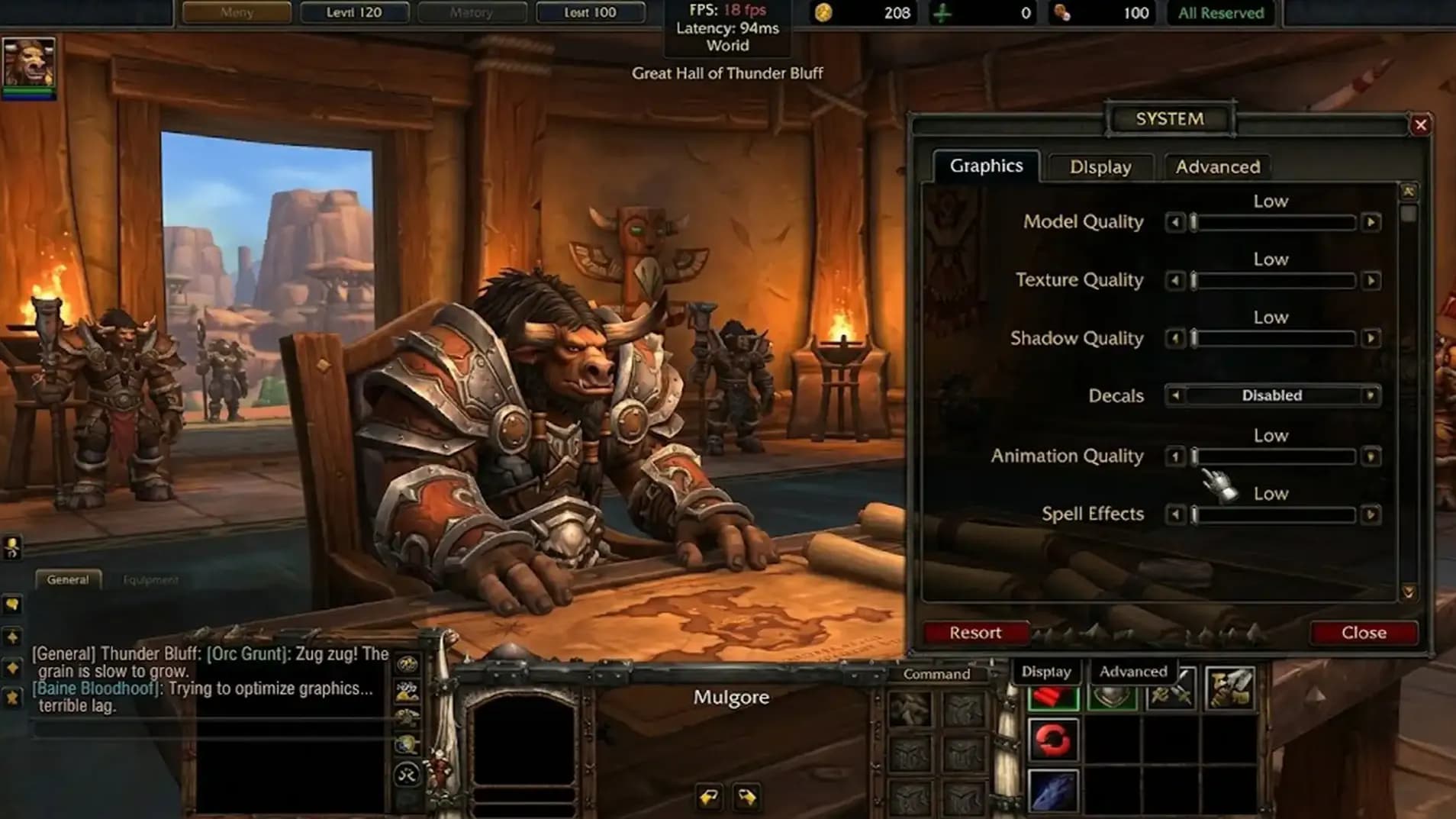




For those of you who just want someone to tell you what to set everything to. Fine. Here.
|
Setting |
Survival Mode ("Please Just Work") |
Balanced ("Human Being") |
High ("This Is Why I Upgraded") |
Ultra / 4K ("Screenshot Simulator") |
|
Render Scale |
70–80% |
90–95% |
100% |
100–150% |
|
Shadow Quality |
Low |
Fair |
Good–High |
Ultra + Ray Traced |
|
View Distance |
3–4 |
5–6 |
7–8 |
10 |
|
Env. Detail |
3 |
5 |
7 |
10 |
|
Ground Clutter |
3 |
5 |
7 |
10 |
|
SSAO |
Off |
Low |
High |
Ultra |
|
Depth Effects |
Off |
Low |
Good |
Ultra |
|
Compute Effects |
Off |
Low |
Good |
Ultra |
|
Liquid Detail |
Low |
Good |
Ultra |
Ultra |
|
Particle Density |
Essential |
Good |
High |
Ultra |
|
Projected Textures |
ON |
ON |
ON |
ON |
|
Texture Res |
Fair |
High |
Ultra |
Ultra |
|
Anti-Aliasing |
CMAA |
CMAA |
MSAA 2x |
MSAA 8x |
|
Spell Density |
Essential |
Reduced |
Everything |
Everything + Sunshafts |
The in-game settings menu doesn't expose everything. Here are the commands the game hides from you, presumably because Blizzard is embarrassed they're necessary.
Open in-game chat and type these. They persist between sessions.
// Enable sharpening filter: makes lower render scales look crisp
/console set ResampleAlwaysSharpen 1
// Disable addon profiler (small but real perf gain)
/run C_CVar.RegisterCVar('addonProfilerEnabled', '1'); C_CVar.SetCVar('addonProfilerEnabled', '0')
Run these before a raid for extra performance in instanced content.
// Disable water detail in raids
/console RAIDWaterDetail 0
// Disable weather effects in raids (default is 3)
/console RAIDweatherDensity 0
// Cap FPS in background (stops WoW from burning your CPU when tabbed out)
/console MaxFPSBk 30
// Turn off friendly nameplates: they process auras even when invisible
// This is a known Blizzard bug. Costs 15–20 FPS. Use Shift+V in-game
Press Shift+V → toggles friendly nameplates OFF
✓ Best Practice Blizzard recommends a full WoW installation reset at the start of every major expansion. Delete and re-download rather than patching over multiple years of data. Years of incremental patches bloat the data folder significantly, and a clean install can recover 20–40 GB while improving load times.
Your addons are probably costing you more FPS than your graphics settings. Congratulations on installing 47 of them.
AddOns can reduce performance by 20–30% during heavy combat. The main offenders are nameplate addons, damage meters, and complex WeakAuras: especially those using 3D models or high-frequency update intervals.
|
AddOn Type |
Performance Risk |
What To Do |
|
WeakAuras (complex) |
High |
Increase update intervals. Remove unused/outdated auras. Avoid WAs with 3D models or per-frame updates |
|
ElvUI / custom UI frameworks |
Med |
Increase update frequencies in config (e.g. ElvUI's "Updates per second"). Disable modules you don't use |
|
Plater / Nameplate addons |
High |
Disable friendly nameplates entirely: they update aura data even at alpha 0 (invisible). Blizzard bug |
|
Details! / Damage Meters |
Med |
Reduce update rate. Disable in-combat display if you don't need it mid-fight |
|
BigWigs / DBM |
Low–Med |
Keep current version. Outdated versions have more overhead. Disable for content you're not running |
|
Minimap / world addons |
Low |
Generally fine. Disable if running on very low-end hardware |
Suppressed Lua errors run silently in the background and tank performance without you knowing. Install BugGrabber + BugSack to identify problematic addons, then remove or update them.

All those sliders won't mean anything if Windows is busy updating itself in the background at 3 AM while you're doing a Mythic prog night.
|
Setting |
Action |
FPS Gain |
How To |
|
Game Mode |
Enable |
Low–Med |
Settings → Gaming → Game Mode → On |
|
Xbox Game Bar |
Disable |
Low |
Settings → Gaming → Xbox Game Bar → Off. It hooks into every game process |
|
Power Plan |
High Performance or Ultimate |
Med |
Control Panel → Power Options. Stops CPU clock speed from throttling |
|
Hardware-Accelerated GPU Scheduling |
Enable (if RTX 30/40 or RX 6000+) |
Low |
Settings → Display → Graphics → Change default graphics settings → HAGS On |
|
GPU Drivers |
Keep Updated |
High (on patch day) |
NVIDIA App / AMD Software. Outdated drivers cause stutters on patch weeks |
|
NVIDIA Low Latency Mode |
Ultra (in NVCP) |
Low (responsiveness) |
NVIDIA Control Panel → Manage 3D Settings → Low Latency Mode → Ultra |
|
AMD Anti-Lag 2 |
Enable (RX 6000+ only) |
Low (responsiveness) |
AMD Software: Adrenalin → Gaming → Anti-Lag 2 |
|
Background Apps |
Close unnecessary |
Med |
Close Discord (or disable hardware accel overlay), Chrome, streaming software during raids |
|
Discord Overlay |
Disable |
Low |
Discord Settings → Overlay → Disable. Hooks into every game and adds latency |
|
Windows Defender Real-Time |
Exclude WoW folder |
Med |
Windows Security → Virus Protection → Exclusions → Add WoW install folder. Stops it scanning every asset load |
|
Problem |
First Thing To Lower |
Second Thing |
Nuclear Option |
|
Low FPS in raids / cities |
Shadow Quality → Low |
View Distance → 4–5 |
Environmental Detail → 3 + disable SSAO |
|
Low FPS in open world |
Render Scale → 85% |
Sunshafts + Liquid Detail down |
Reduce Render Scale further, add /console ResampleAlwaysSharpen 1 |
|
Spell effect visual chaos |
Spell Density → Essential |
Particle Density → Reduced |
Also disable friendly nameplates via Shift+V |
|
Stuttering / frametime spikes |
Close background apps + Discord overlay |
Switch to DirectX 12 (or 11 if crashing) |
Exclude WoW folder from Windows Defender |
|
Slow loading screens |
Check you're on SSD, not HDD |
Clear WoW cache folder |
Full reinstall on expansion launch |





Is WoW: Midnight melting your GPU? Don't panic! We have the ultimate survival guide to fix your FPS, tweak your settings, and save your raid!

Is WoW: Midnight melting your GPU? Don't panic! We have the ultimate survival guide to fix your FPS, tweak your settings, and save your raid!

Is WoW: Midnight melting your GPU? Don't panic! We have the ultimate survival guide to fix your FPS, tweak your settings, and save your raid!

Not at all; your PC is fine. WoW: Midnight is heavily CPU-bound in group content. The game engine processes everything—40 players, hundreds of spells, and boss mechanics—sequentially on its main thread. Your RTX 4090 is likely sitting at 40% utilization just waiting for your CPU to finish its math.
No. HDDs are officially abandoned for this expansion. An SSD is now a hard requirement. If you try to run it on an HDD, you will experience unbearable loading screens and constant stuttering as the game struggles to load assets.
Start with Shadow Quality (drop it to Low) and View Distance (drop it to 4–5). Because cities and raids bottleneck your CPU, lowering these CPU-heavy settings is your best lever. Dropping View Distance alone can recover 20–30 FPS in crowded areas.
Yes, significantly. AddOns can reduce performance by 20–30% during heavy combat. The worst offenders are complex WeakAuras, damage meters (like Details!), and nameplate addons. Tip: Press Shift+V to turn off friendly nameplates; a Blizzard bug causes them to process data and tank frames even when they are invisible.
Some settings are tied directly to gameplay survival. If you set Particle Density to "Low" or turn off Projected Textures, you will make enemy fire, void zones, and boss mechanics completely invisible. Always keep Projected Textures ON and Particle Density on at least "Essential."
Lower your Render Scale to around 75%–90%. This reduces the internal rendering resolution, taking a massive load off your GPU. To prevent the game from looking blurry, type this hidden command into your chat box: /console set ResampleAlwaysSharpen 1.

GTA 6, new seasons, major updates — get ready to dominate from day one.